

To add a promotion on LinkedIn, create a new entry under Experience and select the same company page as your previous role. Enter your new title and the month you started. If the promotion replaced your old role, check that the old entry shows the month it ended.
Before you save, check Notify network and choose whether LinkedIn can share the update. You can also write your own announcement later.
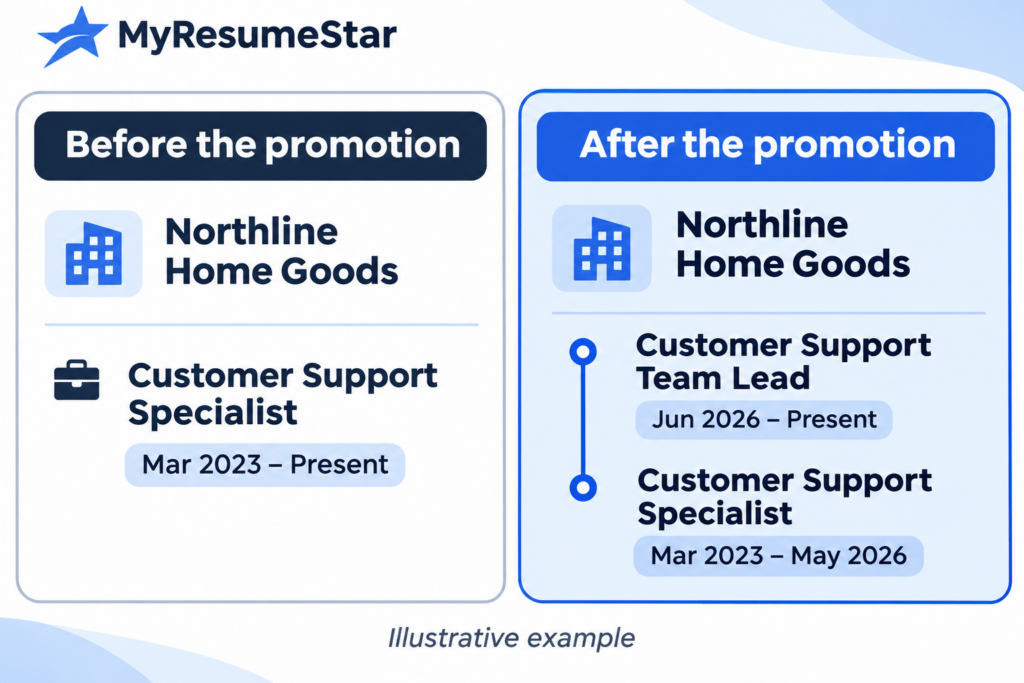
Here’s how the update can look. In this fictional example, a Customer Support Specialist at Northline Home Goods became a Customer Support Team Lead in June 2026. The profile shows the earlier role ending in May 2026 and the Team Lead role as current.
Add a New Position or Edit Your Current Role?
Add a new position when you move into a distinct role. If you’re still in the same role and want to show duties you’ve taken on, edit its description. That way, your Experience section shows when you actually moved from one job to another.
If you’re still applying for the promotion, wait until the company confirms the move before updating your profile. For help making your case, see our cover letter examples for promotion.
How to Add a Promotion on LinkedIn on Desktop and Mobile
Open Add position from your profile. The route is slightly different on desktop and mobile, but you’ll enter the same promotion details on either device.
On Desktop
Click Me → View Profile → Add profile section. Under Core, choose Add position.
In the LinkedIn App
Tap your profile photo, then open your profile. Tap Add section and choose Core → Add position.
Enter the Details for Your New Role
Here’s what the fictional Northline Home Goods promotion looks like in the form. If the new title, pay, or start date is still under discussion, confirm the details with your employer before updating your profile. If pay is the part you’re still working out, see how to negotiate salary for a promotion.
- Title
- Customer Support Team Lead
- Employment type
- Full-time, if that reflects your arrangement.
- Company name
- Northline Home Goods. Select the same company page used for the Specialist role.
- Start date
- June 2026. Mark the role as your current position if you still hold it.
- Description
- Summarize what you do now, such as coaching support agents or handling escalated cases.
Check Notify network before saving. If you want to update the profile without sending a notification, turn the setting off before you save.
Check Your Previous Role After Saving
Go back to Experience and find your previous entry. If the promotion replaced that job, confirm the old role has the correct end date. Edit the old entry if it still shows Present or if LinkedIn filled in the wrong month.
In this example, Customer Support Team Lead shows June 2026–Present. Customer Support Specialist shows March 2023–May 2026. If you still hold both roles, leave both current and use the dates that reflect your work history.
See the official LinkedIn instructions for managing your Experience section.
Why Aren’t My LinkedIn Positions Grouped?
If LinkedIn shows your employer twice, check the company page and the dates on both entries. LinkedIn groups roles automatically when they’re linked to the same company and the new role starts within one month of the previous role ending.
- Check the company page on both entries. Open each role under Experience and check the Company name field. If you typed the name manually or picked a similarly named page, select the correct company from LinkedIn’s suggestions.
- Check when the old role ended and the new one began. If the promotion replaced your previous role and the old entry still says Present, add the month it actually ended. Check that the new entry shows the month you started.
- Save and check Experience again. When the entries group, you’ll see one company heading with both job titles underneath. Each role keeps its own dates and description.
Example at Northline Home Goods
Customer Support Specialist ended in May 2026. Customer Support Team Lead began in June 2026. With both entries linked to the same company page, those dates meet LinkedIn’s grouping rule.
What If the Two Roles Belong on Separate Company Pages?
If you moved to a subsidiary with its own LinkedIn page, use the page that accurately represents each role. The entries may appear separately. If it helps explain the move, mention the transfer in the new description, such as Transferred from Northline Home Goods to its distribution subsidiary to lead the support team.
If you returned to the company after a gap of more than one month, keep your actual dates. Separate entries show when you worked there each time.
See LinkedIn’s guide to grouping positions in Experience for the official rule.
What to Write in Your Promoted Role’s Description
Describe what you’re responsible for in the new role. If you used to handle customer cases and now help other agents resolve theirs, say so. Keep work you completed before the promotion under the earlier position.
In this fictional example from Northline Home Goods, the Specialist handled customer cases directly. After the promotion, the Team Lead began coaching agents, reviewing cases that needed a supervisor, and coordinating coverage.
Customer Support Specialist
March 2023–May 2026
Answered customer questions about orders, deliveries, and returns by email and chat. Worked with the warehouse team to resolve missing shipments and followed up with customers until each case was closed.
Customer Support Team Lead
June 2026–Present
Coach support agents, review customer cases that need a supervisor, and coordinate shift coverage. Run weekly case reviews so agents can practice handling refunds and delivery issues consistently.
If you’ve just started, focus on the work you’ve taken on. You can add results once you know them. If your team doesn’t track a result in numbers, explain what you changed and who used it. See our examples of how to describe achievements without numbers.
Check Your LinkedIn Intro, Headline, and Skills
- Intro. If the top of your profile still shows the old position, open the intro editor and check which current position is selected.
- Headline. Update it if it still names your previous role. For example, use Customer Support Team Lead | Agent Coaching and Customer Escalations if those duties reflect your work.
- Skills. Add skills you use in the new role, such as coaching or handling escalated customer cases.
If you’re updating your resume too, see how to list two roles at the same company and where to put your LinkedIn profile link.
How to Add a Promotion Without Notifying Your Network
Turn off Notify network before you save the new position. You can add your promotion to Experience now and decide later whether to share it in a post.
- Open Add position and enter the details of your promoted role.
- Find Notify network in the form and switch it off before you select Save.
- If you edit the previous role separately to add its end date, check the notification setting on that edit too, if it appears.
People who visit your profile can still see the saved change. The switch controls whether LinkedIn shares the update with your network. Your profile’s visibility settings determine who can view it.
Where to Check Your Default Sharing Setting
In LinkedIn settings, open Visibility and look under Visibility of your LinkedIn activity. LinkedIn’s guide to sharing profile updates shows where to find the setting on your device. It also explains that, when sharing is on, eligible job updates can take up to two hours to appear.
If you want to share the news in your own words, use one of these LinkedIn promotion announcement examples.
How to Announce a Promotion on LinkedIn
Start a post, name your new role and company, and say what you’re looking forward to doing. Check the post’s audience before publishing. If your company plans to announce the promotion internally first, wait until it’s ready for you to share the news.
Both examples use the same fictional promotion at Northline Home Goods. Choose the version that sounds like you and replace the details with your own.
I’ve been promoted to Customer Support Team Lead at Northline Home Goods. I’m looking forward to coaching our agents and helping the team handle the customer cases that need extra attention.
I’m happy to share that I’ve been promoted to Customer Support Team Lead at Northline Home Goods.
As a Customer Support Specialist, I learned a lot from teammates who helped me work through tricky delivery and return cases. Thank you to everyone who took the time to share how they approached that work.
In my new role, I’m looking forward to doing the same for our agents and making it easier for them to get help when a case gets complicated.
Before you post, check the spelling of the title and company name. If you thank someone by name, tag them only if it makes sense. Use details you’re comfortable sharing with the audience you selected.
LinkedIn Promotion FAQs
Can I add a promotion I received months ago?
Yes. Use the month and year you actually started the promoted role. If the promotion replaced your previous role, check that the earlier entry shows the month it ended.
What if my company corrected my job title and my role stayed the same?
Edit the title in your existing Experience entry and keep the original start date. Use a separate entry when you actually move into a distinct role.
Why does the top of my LinkedIn profile still show my old job title?
Open the edit menu at the top of your profile. Check which role is selected under Primary position, then check the Headline field separately. A headline you wrote yourself may still contain the old title even after you add the new role to Experience.
Can I keep both positions marked as current?
Yes, if you still hold both roles. For example, you may continue a specialist assignment while taking on a separate acting lead role. If the promotion replaced your previous job, give the previous entry its actual end date.