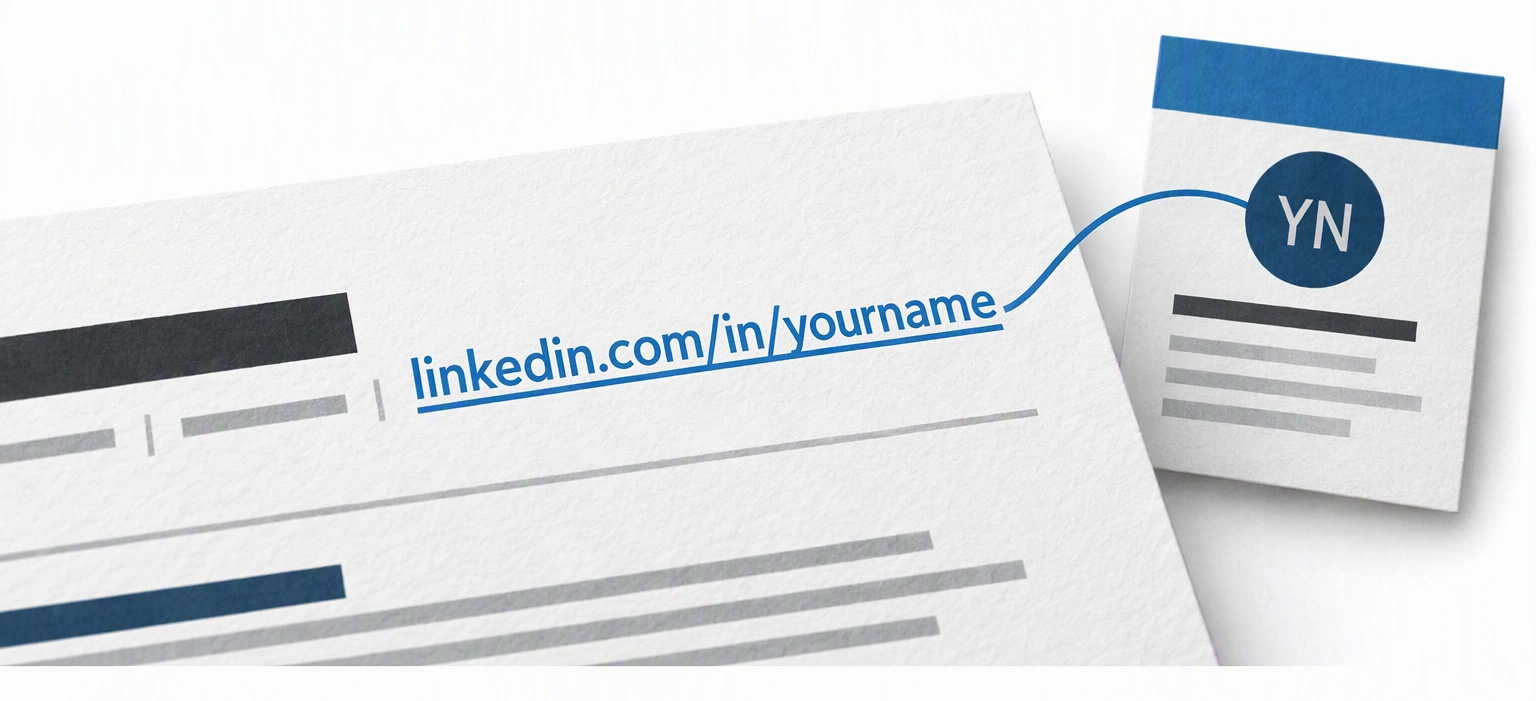

Put your LinkedIn profile URL with your contact information at the top of your resume, near your email and phone number. Display a readable address, such as linkedin.com/in/yourname, and link it to your full profile URL, including https://. This gives someone reading a PDF a clickable link and someone holding a printed copy an address they can type.
A contact block could look like this. The details are illustrative:
Jordan Lee
Chicago, IL | 312-555-0142 | jordan.lee@example.com
linkedin.com/in/yourname
Replace the example address with your own. Use the public profile URL from LinkedIn, not a link to your home feed, an edit screen, or a search result. The link supplements your resume; the qualifications needed to assess your application still belong in the document.
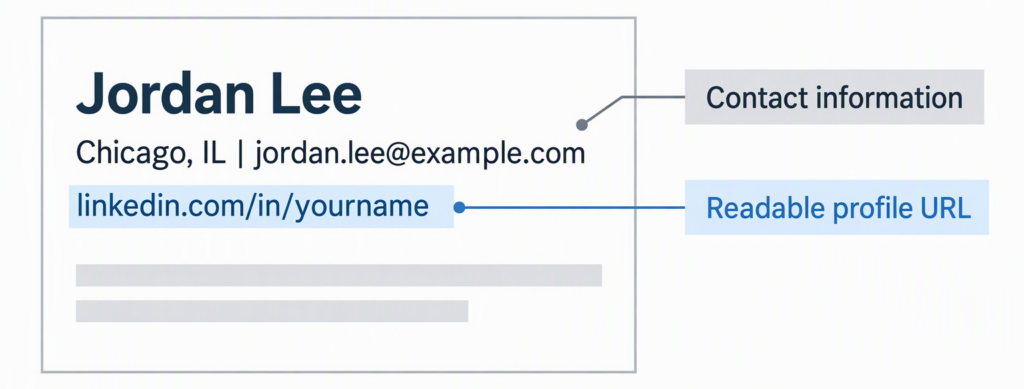
The profile address belongs with your contact information.
Find your profile address and shorten it if needed
On a desktop browser, open LinkedIn, select Me, then View Profile. Your address should identify an individual profile, normally using linkedin.com/in/ followed by its unique name. Copy that address, or open Public profile & URL to see the profile URL settings.
If the address contains a long assigned suffix, you can choose a shorter custom version in LinkedIn’s settings. You must save that change on LinkedIn before using the new address. Simply deleting characters from a pasted URL can send the reader to a nonexistent page or someone else’s profile.
LinkedIn documents this desktop route:
- On your profile, select the edit icon beside Public profile & URL.
- Under Edit your custom URL, select the edit icon beside your address.
- Enter an available version of the final part of the URL.
- Select Save.
On mobile, LinkedIn’s documented path goes through your profile’s More menu, Contact info, and its edit icon. Select Profile URL to open the public-profile settings, then edit the custom URL there. Menu labels can differ between the app and mobile browser.
Make the address clickable in your document
Use the document’s link tool to associate the displayed address with its destination. For example:
Displayed text: linkedin.com/in/yourname
Link destination: https://www.linkedin.com/in/yourname/
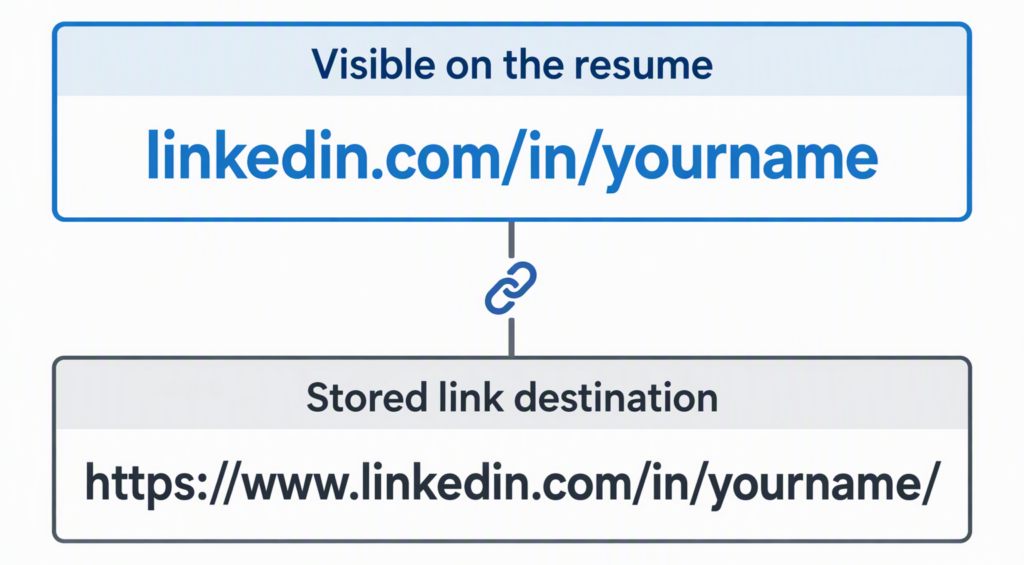
The displayed text and destination are separate parts of the link.
In Microsoft Word
- Type the visible address in your contact block and select it.
- Choose Insert > Link, or right-click the selected text and choose Link.
- Paste the complete profile URL into Address. If needed, select Existing File or Web Page first.
- Confirm the link. The Text to display field controls the wording in the document.
Word can also create a link automatically after you type a full address and press Space or Enter.
In Google Docs
- Select the address you’ve typed.
- Choose Insert > Link.
- Paste the complete profile address into the link field.
- Select Apply.
Keep the contact block easy to read
Use normal document text near your name. You don’t need a separate LinkedIn section, a paragraph introducing your profile, or the link repeated on each page.
If a single contact line is crowded, put the profile address on a second line, as in the opening example. Keep the font readable instead of shrinking the entire block to make it fit. When a template places contact information in a text box or Word’s header area, check the exported document carefully; a simple text block avoids that extra layout dependency.
When you also have a portfolio
Give each destination a clear purpose. For a designer, LinkedIn might contain work history and recommendations, while a portfolio contains case studies and finished work. A developer could use the second link for a selected project portfolio or GitHub profile.
Carolyn Couch, a Certified Master Coach and Academy Certified Resume Writer, advises in ResumeTemplates: “Only include additional social media links if they are professionally oriented.”
For example, a photographer’s client-facing Instagram account could be relevant; a personal account doesn’t automatically earn a place because it exists. Choose destinations that help someone evaluate your work, rather than filling the contact block with every account you use.
Give the reader something useful at the other end
Before linking your profile, check your current role, employment dates, education, and contact details. Correct factual discrepancies with the resume, particularly a role still marked current after you’ve left it or a degree listed as earned while it’s in progress.
Carolyn Kleiman, a professional resume writer writing for ResumeBuilder, explains: “Your resume summary should be related to your LinkedIn About Section and Headline but not be the same description word for word.”
Use that additional space for context. A resume bullet might say that you redesigned an onboarding process. Your profile could explain the team you worked with, the problem users faced, and link to an approved case study. Recommendations from people who supervised or worked with you can also give the reader another perspective.
Give employers a clear reason to keep reading with these examples of how to start a cover letter.
Handle different levels of detail honestly
A tailored resume may leave out an old, unrelated role that remains on LinkedIn. That difference doesn’t change the facts of the jobs you do include. Likewise, the resume might feature one project from a longer role, while the profile describes a broader set of responsibilities.
Titles need more care. If your official title is “Associate II,” an explanatory version such as “Associate II — Customer Operations” can clarify the function. Calling the same job “Operations Manager” on one document creates a different claim. Keep the official title or make the explanation explicit.
For a career change, your headline can describe the direction you’re pursuing without implying employment you haven’t held. “Customer Support Specialist | Building Data Analysis Skills” communicates something different from “Data Analyst at [Company].” The profile should help someone understand the transition, not leave them reconciling competing histories.
Ready to update your job-search visibility? Follow our guide to removing Open to Work on LinkedIn.
Check what an outside reader can see
Your own signed-in view isn’t the same as the view someone else receives. Open the link in a private browser window to test the logged-out experience, and use LinkedIn’s public-profile controls to review the sections you make visible. LinkedIn allows you to manage public visibility separately from the fuller profile members may see.
You don’t have to publish your phone number, personal email, or other private details on LinkedIn merely because they’re on an application resume. Review the information you want available to profile visitors. Linking your profile also doesn’t require displaying the resume file itself in Featured.
If the profile is nearly empty or materially out of date, fix the useful sections before relying on it to support an application. You can leave the link off a resume while you do that, unless the employer specifically requests it. Don’t add an account you haven’t checked just to satisfy an assumed hiring rule.
Organize your accounting qualifications and financial reporting experience with these accountant resume templates.
Test the file you will actually send
Open the final PDF or Word attachment, not only the editing version. Click the address and confirm that it reaches your profile. If the employer specifies a file type, follow that requirement; otherwise, use an export that keeps the text readable and the link active.
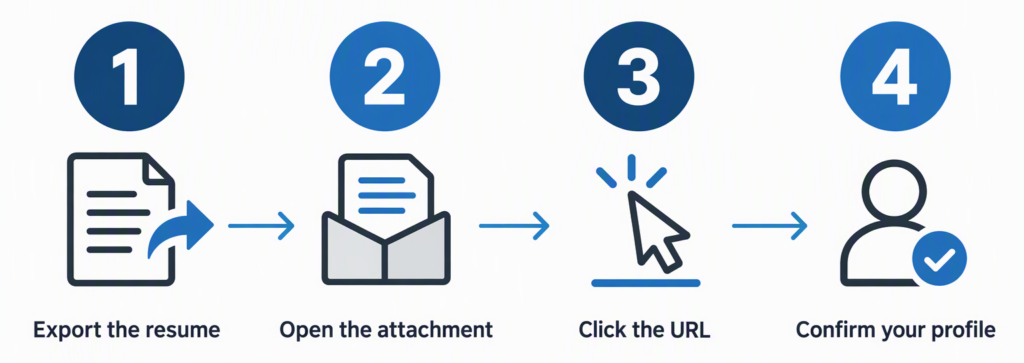
Check the link in the attachment an employer will receive.
Exporting a document and taking a screenshot of it are different operations. A screenshot doesn’t preserve an ordinary text hyperlink. If your PDF has become a flat image, return to the original document and export it again rather than placing another image over the address.
Introduce your relevant strengths for a new field with these career change resume summary and objective examples.
When testing fails, use the symptom to identify the fix:
- Correct text, wrong profile: Edit the hyperlink destination. Changing only the visible text won’t repair it.
- Address wraps awkwardly: Give it its own line or save a shorter available URL on LinkedIn. Don’t insert spaces into the address.
- Link works in the editor but not the attachment: Check the exported file’s link properties and try the document application’s PDF export.
- An application form asks for LinkedIn separately: Paste the full profile URL into that field. The form may not use the link embedded in your uploaded resume.
Ready to apply
The link is a small part of your resume, but it gives an interested employer somewhere useful to go next. With the address working and your profile ready, you can move on to the application itself.
Explore what makes a professional resume effective and give your application a clearer focus.
Frequently asked questions
A custom URL is convenient, not a credential. If your assigned URL works and you need to apply now, you can use it. Avoid delaying an application solely to get an ideal name.
What if my preferred LinkedIn URL is taken?
Try a middle initial, a fuller version of your name, or a relevant professional identifier. For example, a person named Jordan Lee might try jordanmlee or jordanleedesign. These illustrate naming choices; they aren’t claims that the addresses are available.
LinkedIn allows 3–100 characters in the custom portion and says not to use spaces, symbols, special characters, or the word “LinkedIn.” Availability is first come, first served, and capitalization doesn’t create a different address.
Should I use a LinkedIn logo or QR code?
A linked LinkedIn logo can look neat, but an icon alone leaves no address for a reader to type from a printed copy. The same problem occurs when the only visible text says “Click here.” Keep the readable URL if the resume may be printed or its text copied into another system.
A QR code can be convenient at an in-person event, but it uses space and requires another action to open. Treat it as an optional extra for that setting. It doesn’t replace your email, phone number, or written profile address, and it doesn’t improve your qualifications by itself.
Why does my profile link show a sign-in screen?
A sign-in screen doesn’t automatically mean the URL is broken. LinkedIn can limit what logged-out visitors can access. A “profile not found” page or the wrong person’s name is a different problem: compare the destination with the current URL in your profile settings.
What happens if I change my custom URL later?
If you later change your custom URL, update your reusable resume and cover-letter files. LinkedIn says a previous custom URL stays linked for six months unless you unlink it, so an old address isn’t a dependable long-term substitute for updating your documents. LinkedIn also limits custom URL changes to five within six months, with another six-month wait after the fifth change.