Resume Templates for Word
Microsoft Word resume templates give job seekers a quick and practical way to create a professional resume without starting from scratch. These templates are pre-designed layouts that you can open and edit directly in Microsoft Word, making them easy to customize for different jobs and industries.
On this page, you will find a collection of Word resume templates that are simple to edit, professionally structured, and suitable for both freshers and experienced professionals. Whether you prefer a clean traditional layout or a more modern design, these templates help you organize your skills, experience, and education clearly.
Each template can be downloaded and edited in Word (.docx format), allowing you to personalize the content while keeping a consistent and professional resume structure.
Free Microsoft Word Resume Templates
Our comprehensive suite of professionals caters to a diverse team, ranging from seasoned architects to renowned engineers.

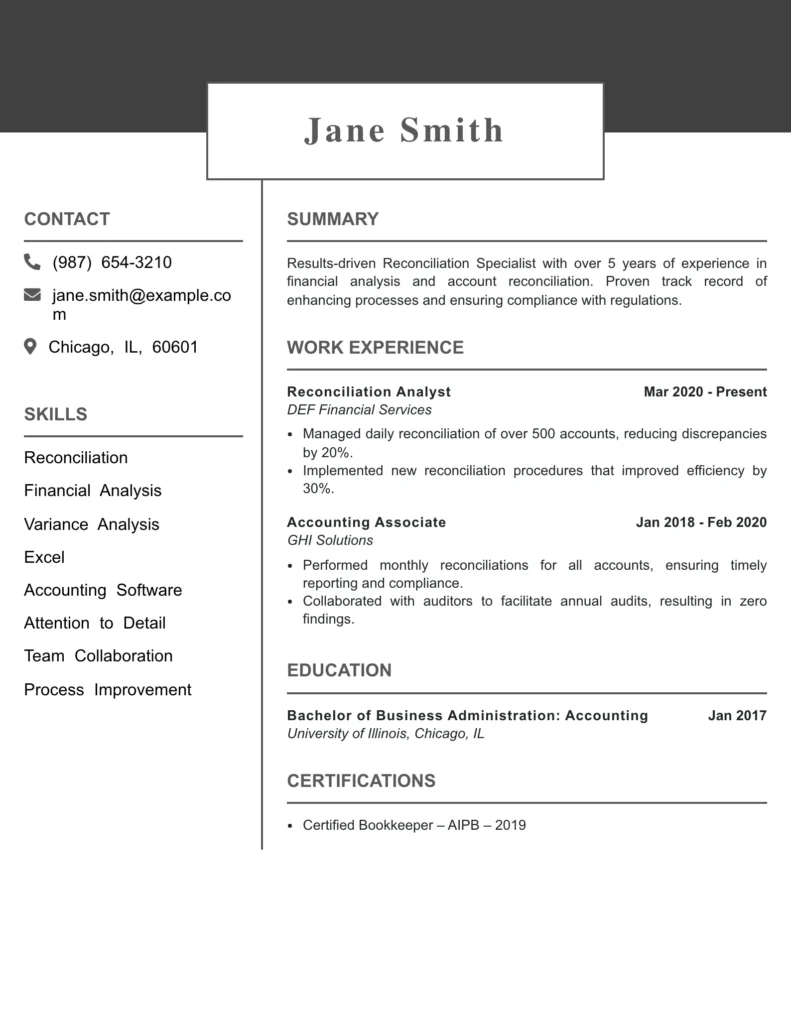
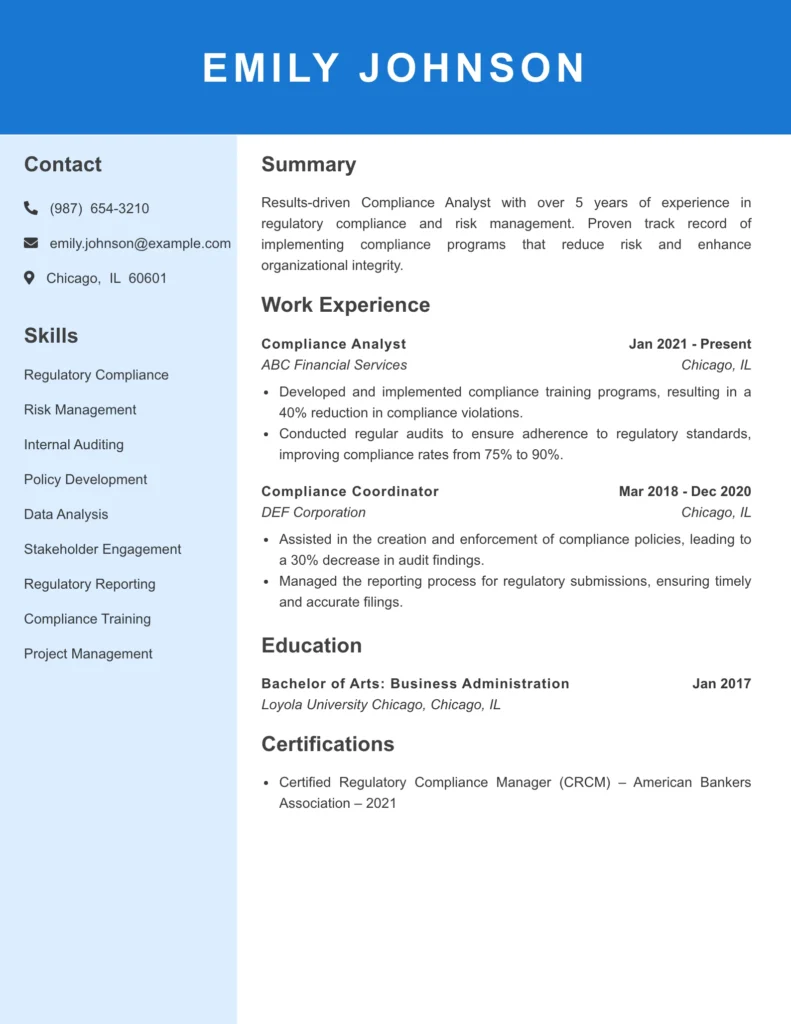
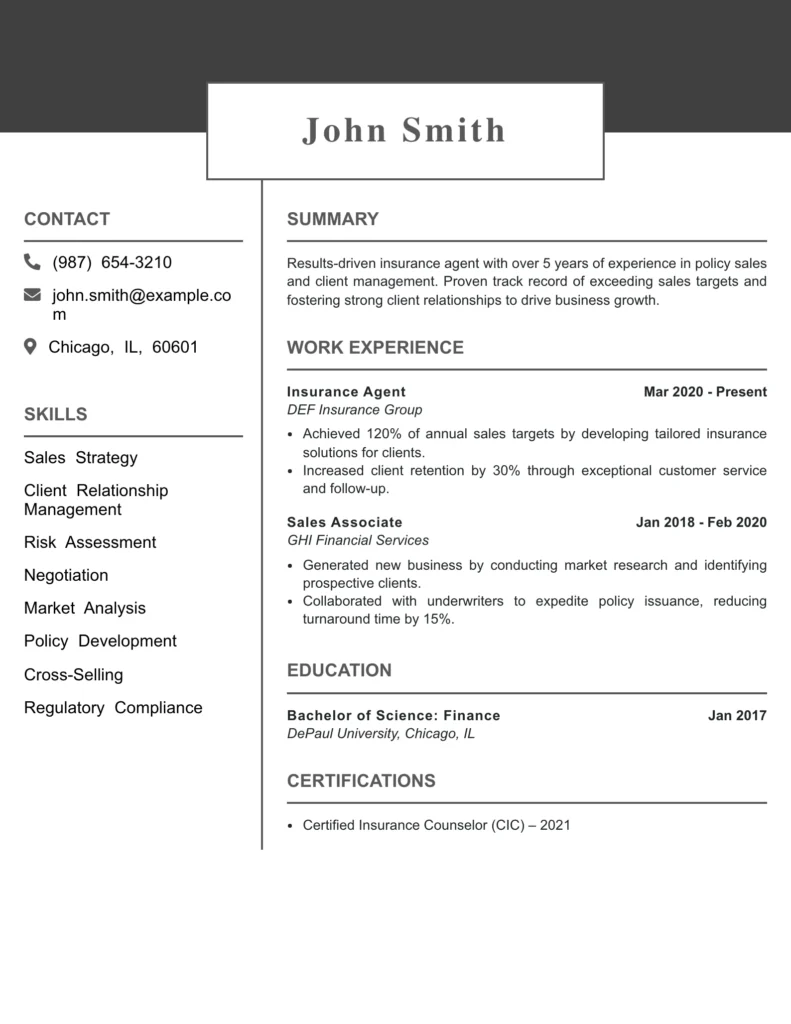
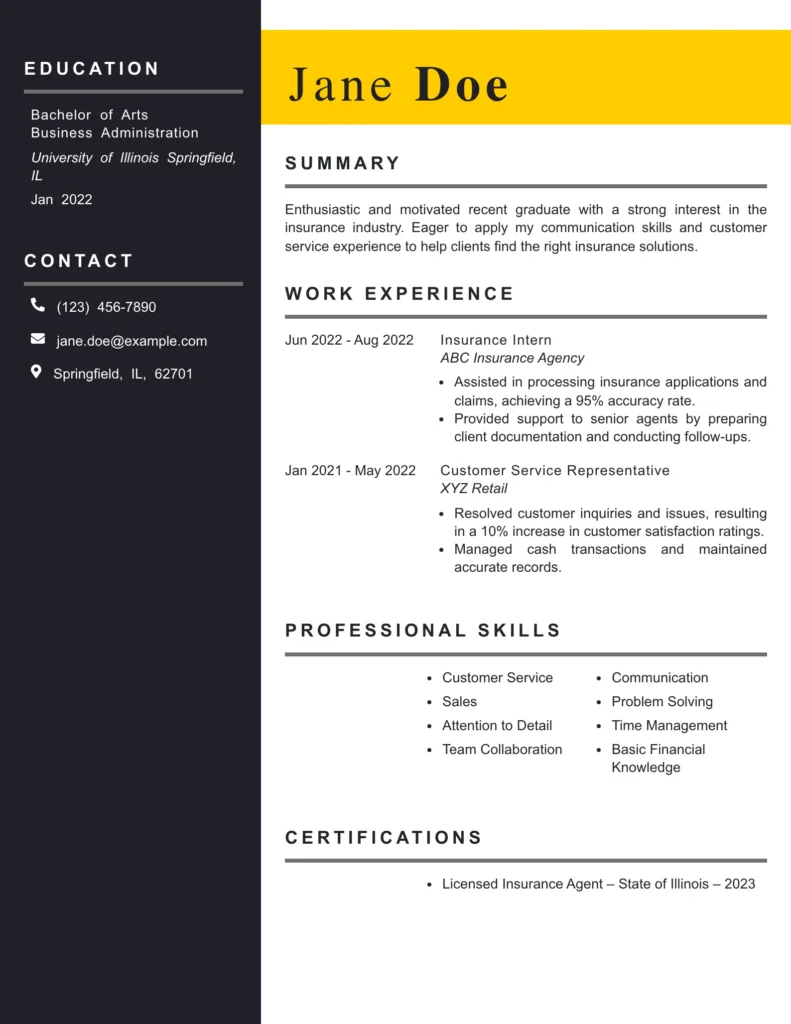
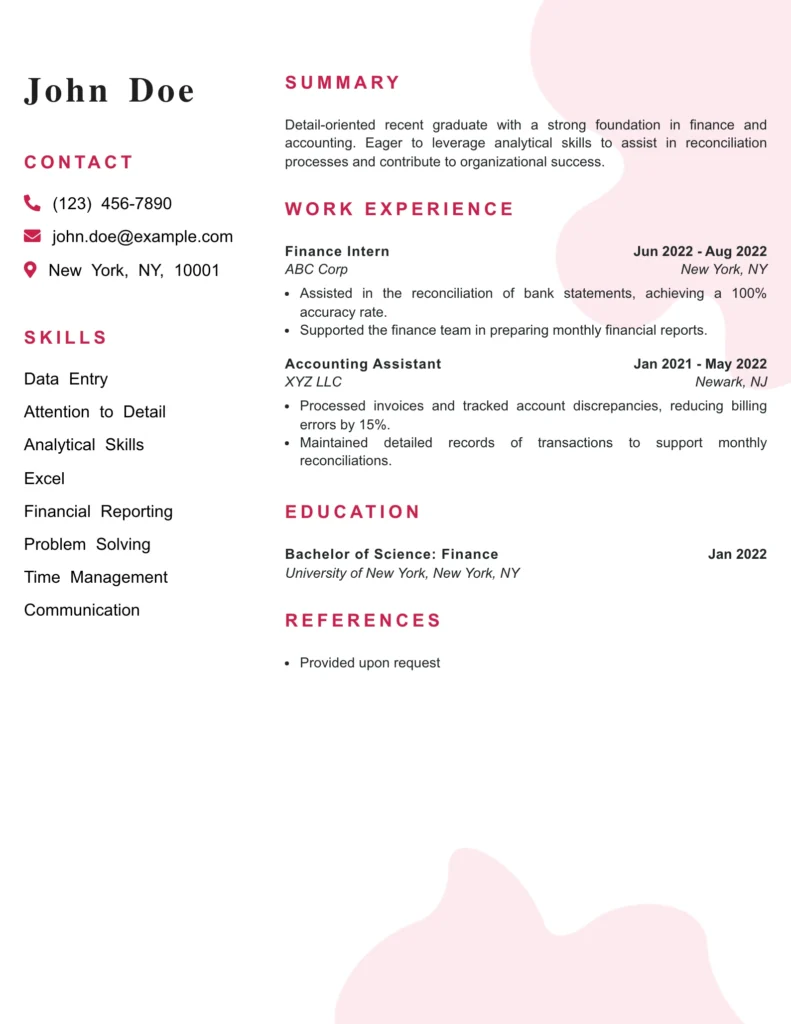
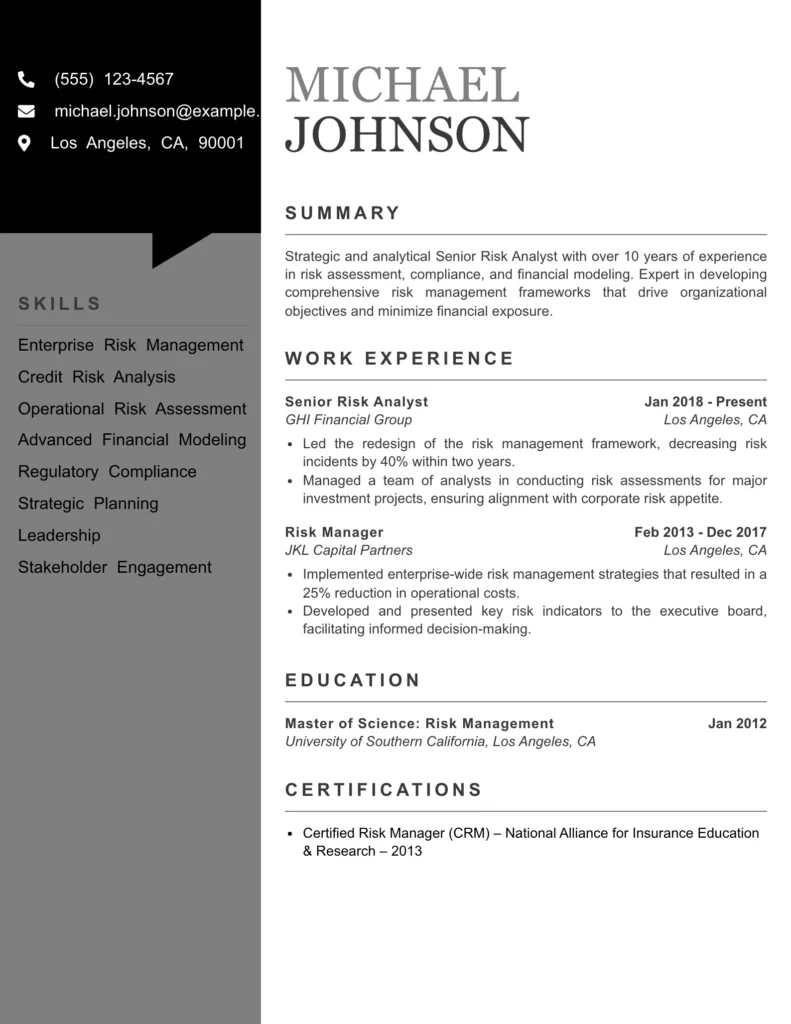
A clean, two-column Microsoft Word resume template designed for professionals. This layout works well for legal, academic, consulting, and other formal roles where a structured and authoritative resume format is preferred.
- Best for: Professionals, consultants, legal roles
- Format: Two-column chronological layout
- ATS safe: Mostly (simple structure, minimal graphics)
- File: Editable Microsoft Word (.docx)

This elegant Microsoft Word resume template uses soft colors and a structured two-column layout to organize experience, education, and key skills clearly. It works especially well for teacher and other education professionals who want a calm, professional resume design.
- Best for: Teachers, counselors, education professionals
- Format: Two-column professional layout
- ATS safe: Mostly (two-column design)
- File: Editable Microsoft Word (.docx)

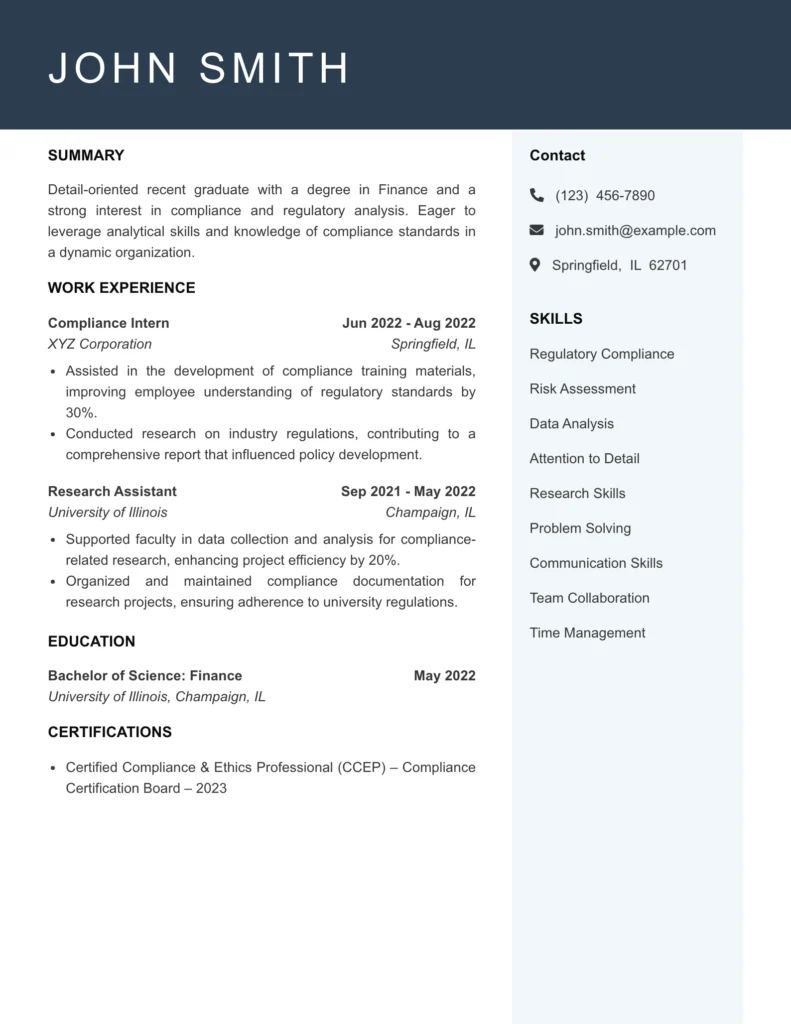
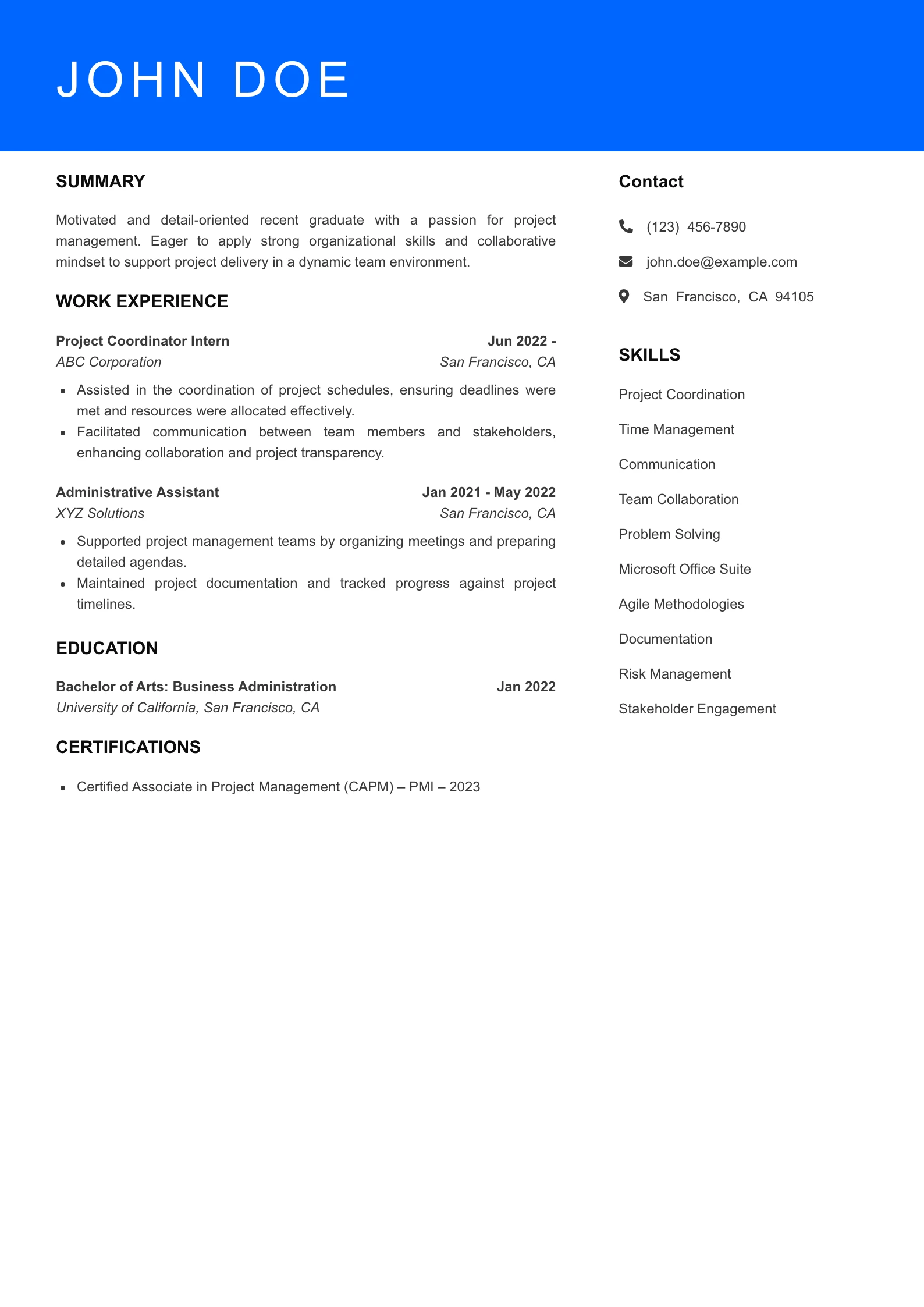
This minimalist Microsoft Word resume template uses bold headings and a structured sidebar layout to organize skills, experience, and education clearly. It works well for entry-level resumes, and fresh graduates who want a simple and professional resume format.

This modern Microsoft Word resume template uses soft color blocks and a hybrid layout to create a clean and visually balanced resume format in Word. It works especially well for UI/UX designers, graphic designers, and other creative professionals who want a stylish yet well-structured resume.
- Best for: Designers, creative professionals, digital roles
- Format: Hybrid two-column layout
- ATS safe: Mostly (creative layout with color blocks)
- File: Editable Microsoft Word (.docx)

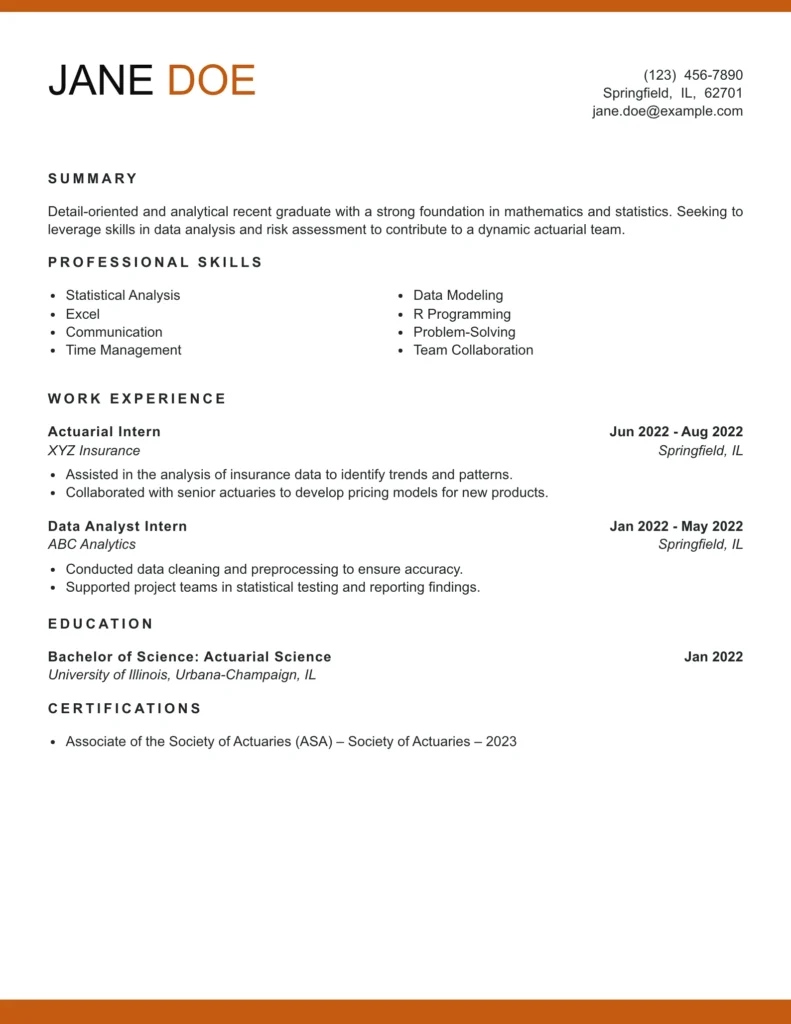
This simple resume format in Word features clean section dividers and plenty of white space, making the content easy to read and organize. It works well for entry-level candidates, customer service roles, and fresh graduates who want a clear and professional resume layout without unnecessary design elements.
- Best for: Entry-level candidates, customer service roles, fresh graduates
- Format: Reverse-chronological layout
- ATS safe: Yes (clean structure and minimal formatting)
- File: Editable Microsoft Word (.docx)

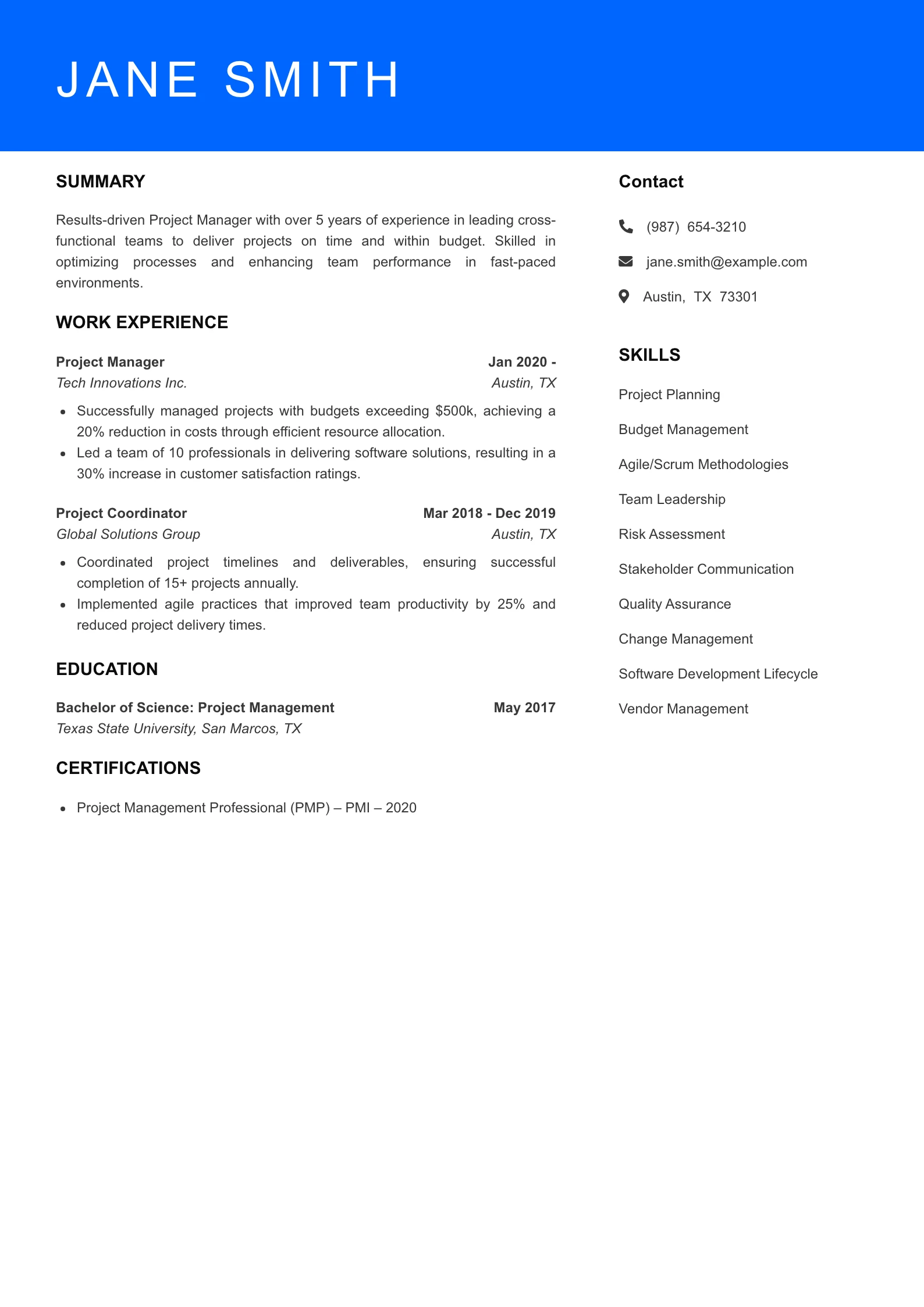
This hybrid Word resume format combines a functional layout (skills and about section) with a reverse-chronological work history, creating a balanced and modern resume structure. It works well for designers, creative professionals, and candidates with diverse skills who want both their abilities and experience to stand out.
- Best for: Designers, creative professionals, multi-skill professionals
- Format: Hybrid resume layout (skills + chronological experience)
- ATS safe: Mostly (sidebar layout)
- File: Editable Microsoft Word (.docx)
Which Word Resume Format to Use
Here’s a quick guide to help you choose the right Word resume format based on your career stage and goals.
| Resume Format | Structure | Best For | Strengths | Considerations |
|---|---|---|---|---|
| Chronological (reverse) | Lists work history in reverse chronological order; summary or objective at top; skills and education after | Job seekers with steady career progression in one field; recruiters expect this layout | Emphasizes experience and growth; highly ATS‑friendly; easy to follow | Draws attention to employment gaps; less ideal for career changers |
| Functional (skills‑first) | Opens with skills summary or achievements; minimal, often bulleted work history; education later | Candidates shifting careers, recent graduates, or those with gaps | Highlights skills and accomplishments; downplays weak or sparse work history | May look vague; some ATS software may struggle to parse it |
| Hybrid (combination) | Starts with key skills and achievements; followed by reverse‑chronological work history | Mid‑career professionals, career changers with experience; those with specific skill sets | Mixes best of chronological and functional: skills plus timeline; generally ATS‑compatible | Layout can get lengthy or cluttered; needs careful formatting. |
In most cases, the reverse-chronological resume format works best because recruiters and ATS systems prefer a clear work history. However, a hybrid resume format in Word can be useful if you want to highlight both skills and experience, while a functional format may help candidates with limited experience or career gaps.
Best Practices for Formatting Your Resume in Microsoft Word
To stand out in 2026, your formatting must do more than “look clean”- it must be architected for both human psychology and machine readability. The following best practices will help you create a clean, readable, and recruiter-friendly resume in Word.
- Standardize Your Margins for “Print Safety”: While 0.5″ is the minimum, we recommend 0.75″ to 1″ margins. Why? Standard office printers often have a “non-printable” margin area. If your text is too close to the edge, a recruiter who prints your resume may lose the last few letters of every line.
- The “Sans-Serif” Digital Advantage: Avoid Times New Roman. Modern recruiters read resumes on high-resolution screens. Sans-Serif fonts like Calibri, Arial, or Georgia are rendered more clearly by pixels than Serif fonts, reducing eye strain and helping the recruiter scan your document for a longer period.
- The “Left-Align” Logic: Never use “Justified” text. While it looks neat on a book page, it creates “rivers of white space” that distract the eye. Left-alignment creates a consistent “anchor point” for the recruiter’s eyes, allowing them to find the start of the next line faster.
- Hierarchy via Font Weight, Not Color: Instead of using colored text (which can disappear if a recruiter uses “Dark Mode” or a black-and-white printer), use Bold and All-Caps for headers. This creates a visual hierarchy that remains high-contrast in every viewing environment.
- Keep it one page: Unless you have 10+ years of experience, limit your resume to 1 page in Word. Break down responsibilities and achievements into 3–5 concise bullets per role.
- Save properly: You can save the resume in both .DOCX format and PDF format, depending upon in which format the recruiter asked you to submit the resume. The MS word Resume templates that are provided in this article can be saved in either format as per your convenience.
Following these formatting practices helps ensure your resume format in MS Word remains clean, readable, and compatible with most ATS software. A well-structured resume also makes it easier for recruiters to quickly scan your skills and experience.
How To Format a Resume Template in Microsoft Word – Step By Step Guide
Choosing a resume template in Microsoft Word is only the first step. Proper formatting ensures your resume looks professional and remains easy for recruiters and ATS systems to read. You have to format it as per the job requirements. It should be composed in such a way that it appear pleasing to hiring manager’s eyes and make a professional impression. Let’s take a detailed look to know how to edit MS Word resume template in order to ‘turn your template into a work of art that will get you a job!‘.
1. Basic Formatting And Sizing:
- Template Size: You should choose the template size to be normal A4 or US Letter size for best compatibility.
- Resume margins and Font Size: For an appropriate look, set the border margins to 1 inch or just a little less. Also, Keep the font size to the same for body text(10–12pt is preferable) and a bit larger for titles(14–16pt) .
Read more :- Resume Margins
- Resume Fonts: Use professional fonts like Times New Roman, Arial, or Calibri. Don’t use fancy styles because they can make things hard to read which is very unprofessional.
Read more :- What are best font for resume?
- Spacing Between Lines: It is necessary that single spacing works is used for body text and double spacing is used between parts for better clarity.
2. Building the basic structure:
- Sections of Resume: In MS Word resume templates all the sections with title are already given. In case you want to customize the pre-designed structure then you should use concise and clear titles like “Resume Summary,” “Work Experience,” “Education Section,” “Skills,” and so on. Also, do not forget that these are the titles of the main sections that is why they should be in bold and strong fonts.
- Content Formatting: Now, once the sections are finalized , next step is to make sure that all the document’s indents, bullet points used, and numbers follow the same formatting style.
- Space The Sections Evenly: Your resume should not appear crowded. For this, separate parts with ample white space so that all the content do appear neat and clear and attention can be drawn to important information.
- Headers and Footers: Usually in a resume your name and contact information is put in the header. Resume templates word are also designed in this way.
3. Highlighting Your Achievements:
- Action Verbs: Action verbs are some effective words that gives extra power to your resume. Action words or action verbs are an effective way to highlight your accomplishments. Also, these power words ensure the ATS compatibility of your resume. That is why it is necessary to include these.
Read for further clarity of topic :- Action verbs for resume.
- Quantify Your Achievements: You should use numbers and data to quantify your achievements. Additionally, the data draw the attention of potential employers and quantification of results have a long lasting impact on hiring managers.
Read More :- Resume words
- Relevancy: You are advised to add only those skills and achievements which are relevant to the job you are applying for. This trick will help you to concise the resume document yet making it more powerful.
4. Take Advantage of Built in Features On MS Word:
- Designs: MS Word have some built in design and styles. You can use these to provide a better consistency in formatting to you resume. You can select ‘Title‘, ‘Heading‘, ‘body text‘ and other options.
- Tables And Forms: Try to avoid adding forms and tables in your resume. Keep formatting simple. These can make your resume Professional.
- Section Breaks And Parts: In case you feel that different sections are over lapping you can use page breaks separate one section from other. This will help you to maintain the professional resume design.
5. Proofread and Check For Errors:
- Typos and Grammar: Once you finished editing the resume template word, next step is to check for any spelling and grammar mistakes. You can take help of professional or you can use spell checker software online. make sure that there is not any grammatical error.
- Being clear and brief: Another method you can adopt to check for grammatical errors is to read you resume aloud such that you are reading it to someone. This will help you to identify any repetitions and you will be aware of the overall flow of resume.
- Save Copy: Before you start to proofread and edit you resume don’t forget to save a copy. It is general practice that is followed around while doing any kind of editing. You can then compare different versions of you resumes to get the best out of all.
Bonus Tip: Instead of doing all this hard work of deciding the template, fixing the structure and editing the content, you can do the smart work. Yes ! All this can be done within a matter of few clicks. Invest in one of our premium resume templates and we will guide you through out the process of creating the best resume. We will take care of all the formatting and font selection, the choice of content and all the work while you just sit back and relax.
The Technical Blueprint: Making Word ATS-Proof
Most candidates don’t realize that Microsoft Word has a “hidden” layer of code (XML) that Applicant Tracking Systems read. If that code is messy, your resume becomes “unparseable.” Follow these technical rules to ensure 100% compatibility:
- Ditch the Text Boxes: Text boxes are treated as “floating objects” in Word. Many older ATS parsers skip over floating objects entirely, meaning your contact info or skills could be completely invisible to the employer. Use standard paragraphs and tab stops instead.
- Tab Stops vs. Spacebar: Never use the spacebar to push your dates to the right side of the page. This creates a string of “empty characters” that can break the ATS text-flow. Instead, use a Right-Aligned Tab Stop at 6.5″. This creates a single, clean instructions-code for the ATS to follow.
- The “Header/Footer” Trap: Never put your contact information in the “Header” or “Footer” section of Word. Some ATS systems ignore these sections to save processing power. Always place your name and contact details in the main body of the document.
- Standardized Section Labels: The ATS looks for specific “hooks.” Use the exact terms “Work Experience,” “Education,” and “Skills.” Changing “Work Experience” to “My Professional Journey” might look creative, but it can prevent the AI from correctly categorizing your history.
Specialized Word Customizations for Various Jobs
Generic templates don’t fit every career. Use these Word-specific “hacks” to tailor your layout without breaking the ATS.
1. For Creative Jobs:-
Images in Word can be a nightmare for ATS parsers if they ‘float’ over text. To add a professional logo or social media icon safely, follow this ‘In-Line’ trick:
- Insert your image into the Word document.
- Right-click the image and select Wrap Text.
- Choose ‘In Line with Text’.
Benefit: This forces Word to treat the image as a character (like a letter of the alphabet). This prevents your text from jumping around when the recruiter opens the file, and ensures the ATS doesn’t get stuck on ‘floating’ objects.
2. For Executive Jobs:-
This targets senior professionals who have long resumes. This is high-value because it solves a common frustration – a longer resume.
- Don’t use the ‘Enter’ key to start a second page. If a recruiter has a different font setting, your carefully placed text will shift.
- To start page two, use Ctrl + Enter (Page Break). This creates a hard-coded command that always starts a new page.
Tip: To keep your contact info on both pages, go to the Insert tab, select Header, and check ‘Different First Page’. This allows you to have a full contact header on page one and a smaller, professional ‘Name | Page 2’ header on the second.
3. For Students:-
Instead of manually changing font sizes for every header, use the Styles Pane (can be found on the Home tab).
Highlight ‘Education’ or ‘Projects’ and click ‘Heading 1’. By using Styles, you aren’t just changing the look; you are adding an XML tag to the document’s code. Modern Applicant Tracking Systems use these tags as ‘bookmarks’ to instantly identify which section is which, significantly increasing your accuracy score in the employer’s database.”
MS Word Resume Templates – Pros vs. Cons
| Advantages (Why People Use Them) | Drawbacks (What They Don’t Tell You) |
|---|---|
| Quick start – Open Word, pick a template, and you’re ready. | ATS rejection risk – Tables, graphics, and text boxes often break Applicant Tracking Systems. |
| Free or low-cost – Plenty of downloadable options at no price. | Generic design – Recruiters can instantly spot the same free template everyone else is using. |
| Familiar tool – Almost everyone knows the basics of Word. | Rigid formats – Many templates are hard to customize without breaking the layout. |
| Simple text edits – Easy to replace placeholder text. | Outdated look – Many designs look like they belong in 2005, not 2025. |
| Offline access – No internet required to edit. | Formatting chaos – Margins, spacing, and alignments often shift when shared or printed. |
| Basic functionality – Good for plain, one-page resumes. | No guidance – Word doesn’t tell you what to write or how to impress recruiters. |
| Control over layout – You can drag, drop, and move sections. | Inconsistent results – Looks neat on your screen, messy on someone else’s. |
| Customizable fonts & colors – Add your own styling. | Unprofessional vibe – Over-styled fonts/colors can look amateurish instead of polished. |
| DIY friendly – Great if you want full control and time to experiment. | Time drain – You’ll spend hours tweaking instead of focusing on the content. |
| Accessible anywhere – Any computer with Word can open it. | Not future-proof – Recruiters expect ATS-friendly, modern resumes built for today’s hiring systems. |
The Bottom Line:
Microsoft Word resume templates can be a convenient starting point, especially for simple resumes. However, some templates may require additional formatting to ensure they remain clean, professional, and compatible with modern ATS systems. That’s why MyResumeStar’s premium templates and smart resume builder are designed to:
- Pass ATS filters flawlessly
- Look professional & recruiter-approved
- Save you hours of formatting stress
Because when your resume actually gets seen, your chances of landing interviews skyrocket.
Premium V/S Free Resume Templates Word
Microsoft Word offers several free resume templates that can work well for simple resumes. However, premium resume templates often provide additional features that make customization easier and help create a more polished and professional resume.
Modern Design and Layout
Many free Word templates use basic layouts that may look similar to other resumes. Premium templates often include modern formatting, better typography, and more balanced layouts, which can help your resume stand out visually.
Flexible Resume Sections
While Word templates usually include standard sections such as experience, education, and skills, premium templates often allow you to add or remove sections more easily. This can be useful if you want to include sections like certifications, projects, achievements, or professional summaries.
Better Customization
Premium templates typically provide more control over formatting, colors, and layout structure. This allows job seekers to adjust their resume design while still maintaining a consistent and professional format.
ATS-Friendly Structure
Many professionally designed resume templates are built with Applicant Tracking Systems (ATS) in mind. They focus on clean formatting, clear headings, and structured sections that improve readability for both recruiters and ATS software.
Additional Career Resources
Some premium resume platforms also include additional tools such as cover letter templates, resume writing guidance, and interview preparation resources.
In Conclusion
Free Microsoft Word resume templates can be a good starting point, especially for basic resumes. However, premium templates may provide more flexibility, modern design options, and structured guidance for creating a stronger job application.
Where to Find Microsoft Word Resume Templates
Microsoft Word offers a variety of free resume templates through its template gallery. These templates are designed to help users create professional-looking resumes with ease. Here’s an explanation of how to access and use these free resume templates in Microsoft Word:
- Open Microsoft Word and click File → New.
- In the template search bar, type “Resume” or “Cover Letter.”
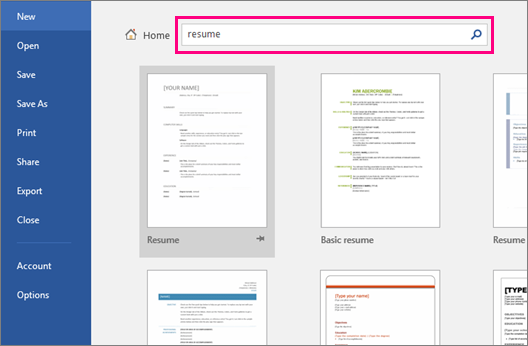
- Browse the available templates and select a layout you like. Double-click the template to open it.
- Replace the placeholder text with your own information and customize the formatting if needed.
Using Word’s template gallery is one of the easiest ways to start building a resume. However, if you want more modern designs and greater customization options, you may also consider professionally designed resume templates for Word.
Reference :- Where to Find Resume Template In MS Word.
Ready to Land Your Next Job?
Don’t let your resume get lost in the stack. Build a professional, ATS-friendly resume that highlights your leadership, achievements, and industry expertise.
Are our Professional Templates Compatible with Word?
All our professional resume templates are fully compatible with MS Word. Once you finish building your resume you can download the resume document in doc/docx format and can edit it in MS Word the way you want it to be . There you can edit you anything like heading font size and style. You can also edit the content as well, but it is highly advised that the content that we provide is best that is why you should refrain from editing it on you own otherwise you might miss on resume action verbs and powerful sentence forming. Nonetheless you will never face any technological problem and compatibility barriers while building you resume.
Premium Resume Templates Examples
When you purchase our subscription you are investing in your future. We do not merely provide templates. We promise you a professionally crafted resumes. Our resumes will surely help you to get the job as we have already helped thousands of job seekers. There is nothing wrong in using MS Word templates, but with our premium services we will take your resume to the next level.
So, what are you waiting for, choose our premium resume templates and embark on a journey of resume making with us. A resume which will leave an impression that lasts, and a resume that will show what you are really capable of doing.
Don’t forget that the future is blank. Make your premium resume the work of art that gets you recognized.

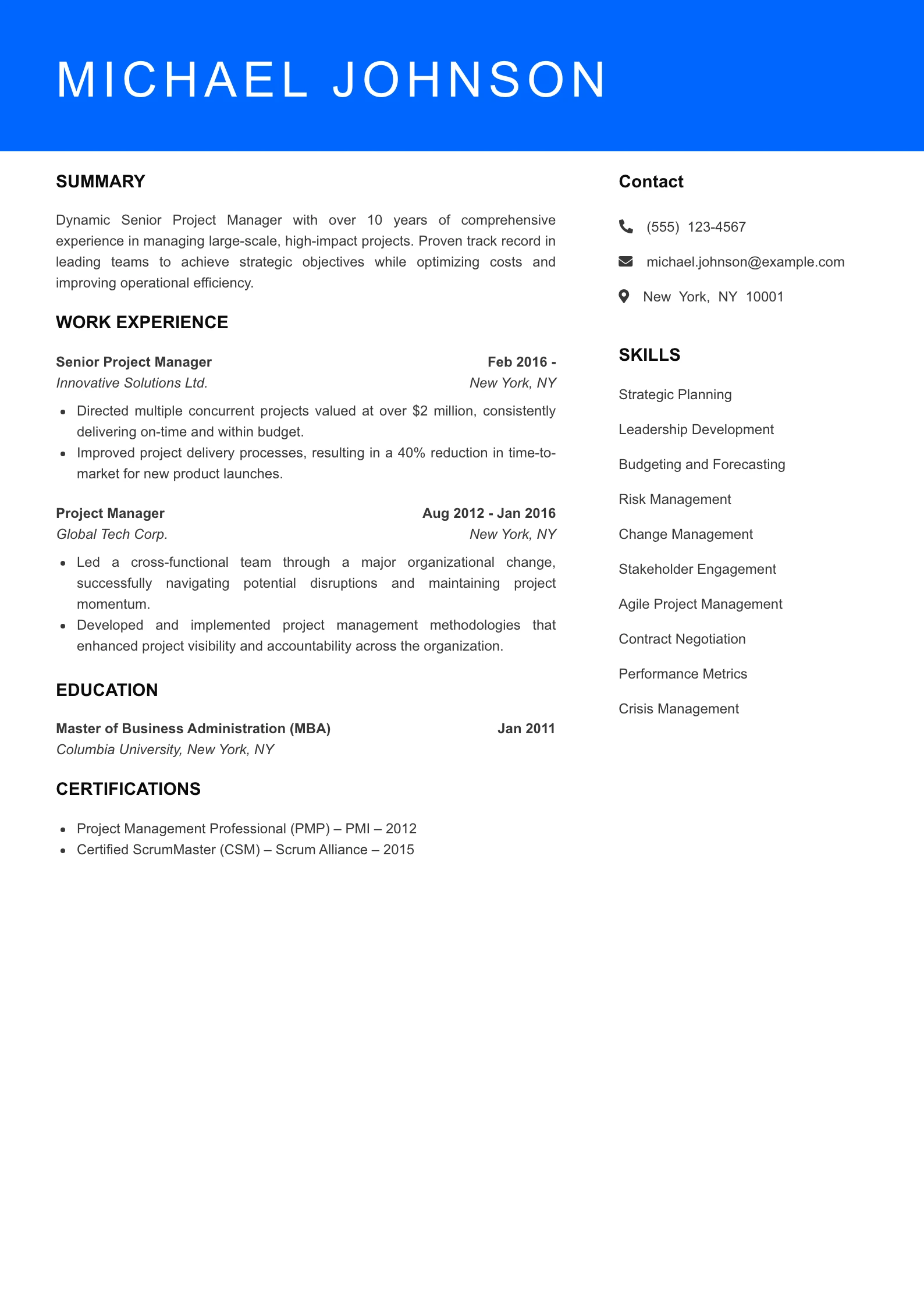
Free Resume Templates
FAQ
A: You should always use a Microsoft Word (.docx) template for the editing process because it is the most compatible with Applicant Tracking Systems (ATS). However, for the final submission, a PDF is generally preferred to ensure your formatting, margins, and fonts remain identical regardless of the recruiter’s device. Our templates are optimized to look professional in both formats.
A: Yes, all of our Microsoft Word resume templates are fully compatible with Google Docs. You can simply upload the .docx file to your Google Drive and select “Open with Google Docs.” Note that while most formatting will remain intact, you should do a quick check of the margins and alignment to ensure a perfect layout before sending.
A: To change fonts safely, use the “Styles” pane in Microsoft Word. Highlight your text and select a standard web-safe font like Arial, Calibri, or Georgia. Avoid using non-standard fonts that require a separate download, as these may not display correctly on the recruiter’s computer and can cause the ATS to misread your professional data.
A: Free Word resume templates are excellent for entry-level roles or standard professional backgrounds. However, Premium Word templates often offer more advanced “Hybrid” layouts and better customization options for multi-page resumes. If you have 10+ years of experience or are applying for an executive role, a premium layout often provides the “visual hierarchy” needed to highlight complex achievements.
A: This usually happens when a resume uses a “fixed” layout with text boxes or non-standard fonts. Our templates use standard flow-text and tables, which are more stable across different versions of Microsoft Word. To completely avoid this issue, always save your final Word document as a PDF before emailing it to a hiring manager.
A: Yes, you can create a resume from scratch in Microsoft Word, but using a template saves time and ensures the layout is structured correctly. Resume templates provide predefined sections and formatting that help job seekers organize their information more effectively.