
For future job applications, upload your resume through Jobs > Preferences > Resumes and application data. To send it with a particular job application, use the Easy Apply form. To display a downloadable resume to people viewing your profile, add it to Featured instead.
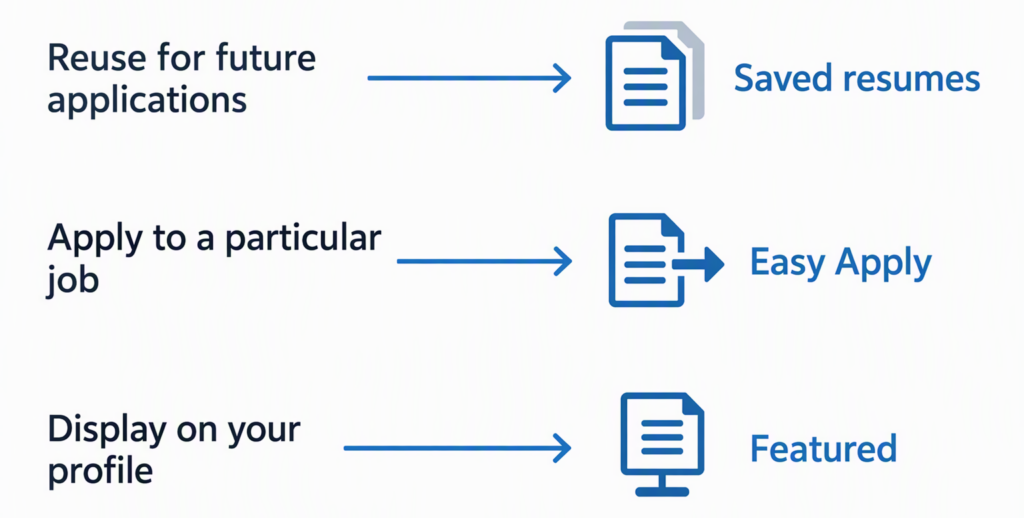
Choose the upload route that matches what you want to do.
Save a resume for future applications
LinkedIn’s help page gives this route for managing application resumes:
- Open Jobs, then Preferences.
- Select Resumes and application data.
- Choose Upload resume and select your file.
You can also upload through Job Application Settings. Labels and menu placement can vary by device or account.
LinkedIn says it retains your four most recently uploaded resumes for reuse. Keep your own copies if you need a larger collection.
LinkedIn can also reuse answers to screening questions, such as whether you’re willing to work remotely. You can opt out of saving application data through Job Application Settings.
Review the recruiter-sharing setting
On this page, look for Share resume data with recruiters; LinkedIn’s help also uses “hirers” for related controls. Enabling sharing can help your profile appear in searches based on information in saved resumes. It does not give all recruiters access to the complete file; they receive it when you provide it, including through a job application.
LinkedIn may prompt you to share resume data after applying. It says it takes steps to hide shared-resume information from recruiters at your current and related companies, but it cannot guarantee complete privacy.
Attach a resume to an Easy Apply job
Open the job you’re interested in and check the application button. Easy Apply starts an application within LinkedIn. Apply can send you to an employer’s website or another job board, where that site’s upload process applies.
For Easy Apply:
- Open the job details and select Easy Apply.
- Complete the requested contact and screening fields.
- At the resume step, select a saved file or choose Upload resume.
- Review the application, including the attached resume.
- Select Submit application when you’re ready.
The screens and required fields vary by listing; follow the employer’s instructions even if the resume field is labeled optional.
Your resume isn’t the only information the employer receives. LinkedIn includes your full profile and the primary email address associated with your account when you apply.
Choose the version for this job
Jacob Meade, a Certified Professional Resume Writer and Academy Certified Resume Writer, notes in ResumeBuilder: “Resumes are not intended to be a comprehensive view of your work experience.”
If you’re applying to customer-success and operations roles, for example, emphasize onboarding and account support in one version, and process documentation and reporting in the other. Keep employers, dates, and qualifications accurate in both.
Include your name and target role in each filename so the versions are easy to identify.
Display a downloadable resume on your profile
Before uploading, prepare a version suitable for profile visitors. Consider leaving out your street address, personal phone number, and reference contact details; people can contact you through LinkedIn if that suits your search.
Carolyn Couch, a Certified Master Coach and Academy Certified Resume Writer, cautions in ResumeTemplates: “However, be sure not to divulge any organizational proprietary information.” Review client names, project details, and internal figures before sharing them.
Add the file to Featured
On desktop, LinkedIn documents these steps:
- Select Me > View Profile.
- Select Add profile section below your introduction.
- Open Recommended, then choose Add Featured.
- Select the + icon and choose the option to upload media.
- Select your resume, enter a clear title and description if prompted, and save.
If Featured is already on your profile, use its add control directly. On mobile, start at your profile and select Add section > Recommended > Add featured. If the media upload option isn’t available in your app, use a desktop browser.
Use a title such as Jordan Lee — Operations Resume and a short description of your area of work.
If your resume sits behind other work samples, open Featured’s edit control and choose Reorder to move it to the first position. This control becomes available when you have at least two featured items.
Understand the audience before publishing
LinkedIn’s Featured FAQ says viewers must be signed in to see Featured content and that it isn’t discoverable through search. Its broader resume-visibility guidance warns that resume attachments on profiles or posts may be visible off LinkedIn. Treat a displayed file as shareable: someone who can download it can keep or forward a copy.
Prepare a file that uploads and reads properly
For job applications, LinkedIn recommends a Microsoft Word or PDF file smaller than 2 MB. Follow the size limit shown in your application form. For a document uploaded to Featured, the maximum is 100 MB under LinkedIn’s media-upload rules.
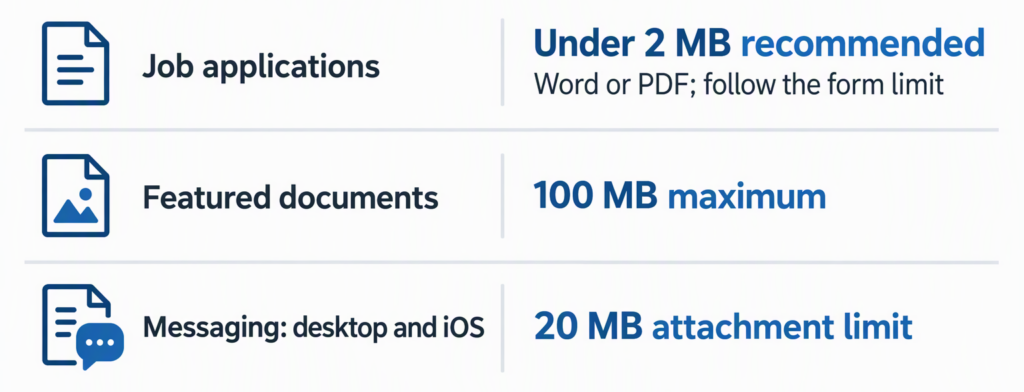
Application guidance and upload limits depend on where the file goes.
A text-based PDF preserves layout and lets readers select the text. Use a Word document if the employer requests one.
Before uploading, check the file itself for:
- Readable pages: No clipped margins, blank final page, tiny type, or headings stranded away from their content.
- Clean content: No tracked edits, reviewer comments, unresolved placeholders, or password protection that prevents access.
- Working contact details: Use an email you monitor and inspect any portfolio or profile links in the exported copy.
If the file is too large, remove unnecessary images or compress it when exporting. If a supported file still won’t upload, try another browser, as LinkedIn recommends for attachment problems.
If you don’t have a resume file yet
You may be able to export your LinkedIn profile as a PDF. In a desktop browser, open Me > View profile, select More or Resources in the introduction section, then choose Save to PDF. LinkedIn says the feature requires an English-language profile and English language settings, isn’t available in the mobile app, and may not appear for every member.
If you need control over the content and layout, create an editable resume in Word or Google Docs using your profile as a reference.
Sharing a resume in a post
A document post lets you announce your search to an audience. From the post composer, choose the document option, select the resume, add a title, and review the audience before publishing.
Use the accompanying text to say which roles you’re seeking and how someone can help. For example: “I’m exploring operations coordinator roles in Chicago. My recent work includes scheduling, vendor communication, and process documentation. I’d appreciate introductions to teams hiring in those areas.”
LinkedIn doesn’t let you replace a post’s attached document. To share a revised resume, create a new post and delete the old one if appropriate. If you also displayed the post in Featured, removing that placement leaves the original post available; delete the original to remove it from its audience.
Send a copy directly to a contact
If a recruiter or referral contact asks for your resume, send it in a LinkedIn conversation. For someone you’re already connected with, you can start from their profile’s Message button or from Messaging.
On desktop:
- Open Messaging, choose Compose, and select your contact.
- Click Attach and select your resume.
- Write a short message explaining the opportunity you’re discussing.
- Click Send.
In the mobile app, use Attach > Send a document on iOS or Add > Send a document on Android. PDF is supported on all three platforms. LinkedIn lists a 20 MB attachment limit for desktop and iOS messaging.
For a referral, include the job title or posting ID so your contact can match the document to the opening. For example: “Hi Maya, thanks for offering to refer me for the data analyst role, job ID 12345. I’ve attached my resume. Please let me know if you need anything else for the referral.”
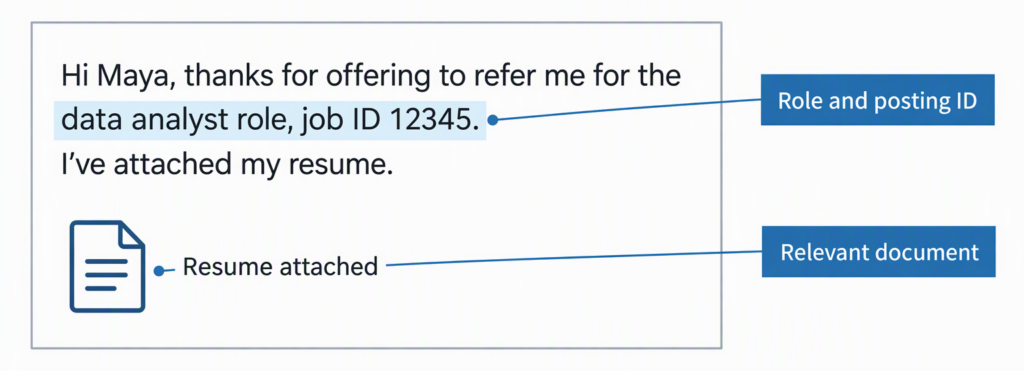
Give a referral contact enough context to identify the opening.
Make your next move
With your resume in place, turn your attention to a role or contact you want to approach. A useful next step is to explain how your experience fits that specific opportunity.
Frequently asked questions
To check the version you sent, LinkedIn’s current help directs you to Jobs > Job tracker > Applied. Open the application, then select Submitted resume.
Can I correct a resume after submitting an application?
LinkedIn says you can’t reopen an already submitted application to add a missing resume or reapply to the same job post. If you sent the wrong file or omitted it, contact the job poster through the contact method provided in the listing and ask whether they can accept a correction.
How do I replace a saved application resume?
Go back to Resumes and application data or Job Application Settings. Use the three-dot menu beside an obsolete file and choose Delete, then upload the replacement. LinkedIn says deleting a saved resume does not affect previously submitted applications.
How do I update a resume in Featured?
Open Featured’s edit control, remove the outdated resume item, and add the updated document.
What does a resume view or download notification mean?
LinkedIn sends application updates when a job poster views an application or downloads a resume. A notice tells you that action occurred; it doesn’t confirm that you’ve been shortlisted or invited to interview.