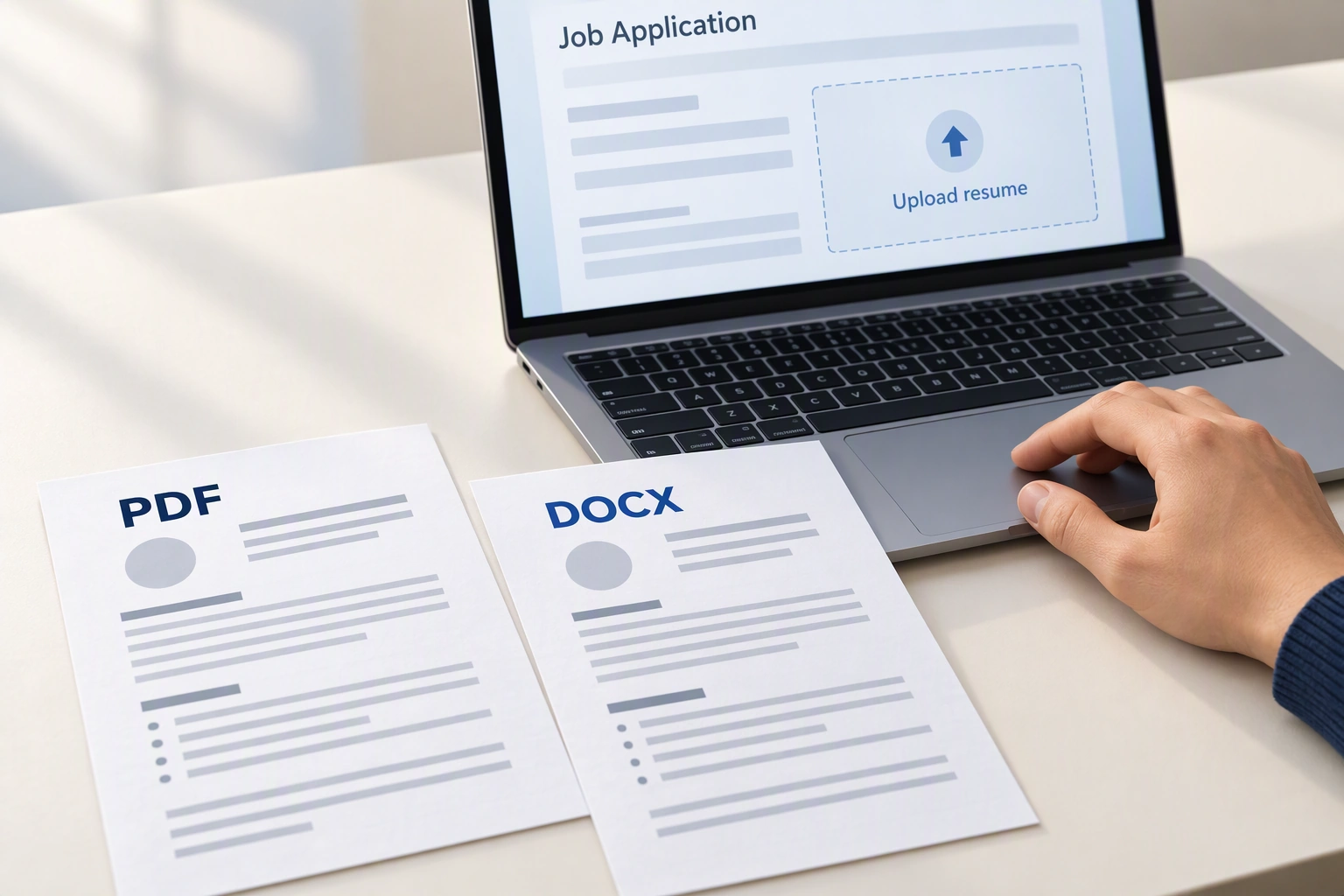

You’ve checked every date, tightened your bullets, and finally clicked Apply. Now the upload box accepts both PDF and Word, and two tabs of advice are telling you opposite things.
Start with the employer’s instructions. When both formats are accepted and no preference is stated, a checked, text-based PDF is a practical default. It preserves the page you prepared. Use DOCX when the employer requests Word or a recruiter needs an editable version.
The important part is what happens after you choose: the file must open properly, contain readable text, and carry the right information into the application.
Key Takeaways
- Give the attachment an identifiable name. Jordan_Lee_Resume.pdf tells the recipient more than resume_final_v7.pdf.
- Keep large work samples separate. Use the requested portfolio field or link instead of turning your resume into an image-heavy presentation.
- Send one resume attachment unless both are requested. Two competing files leave the recipient to decide which is current.
Let the application instructions settle the first decision
A portal may accept several file types even when the job posting asks for one. Read the posting, the upload-field instructions, and any message from the recruiter together. “Supported” means the site permits a format; it doesn’t cancel a specific request.
| What you’re given | Choose | What to do next |
|---|---|---|
| “Please submit a PDF resume” | Export a fresh copy from your current draft. | |
| “Attach your resume in Word format” | DOCX | Check the saved Word file before uploading. |
| A recruiter requests an editable copy | DOCX | Send the version intended for that opportunity. |
| Both formats are accepted, with no preference | Text-based PDF | Check its appearance and text before submission. |
If the instructions conflict, use a listed recruiting contact to clarify. For example, if the posting requests PDF but the resume field allows only DOCX, briefly describe the mismatch. Avoid putting the resume in an unrelated attachment field just to get it onto the site.
Understand what changes between the two files
You can keep both versions ready without maintaining two separate resumes. Make content edits in one working document, then create the submission file from it. Otherwise, a corrected phone number or new achievement may reach one version and miss the other.
PDF keeps the page layout more consistent
Microsoft recommends PDF for documents intended to look the same on most computers and includes resumes among its examples. Fonts, line breaks, and page boundaries are less dependent on the recipient’s editing setup.
That makes PDF useful when you’ve carefully checked where a section ends or whether your contact details fit on one line. It still needs a review after export: a layout problem already present in the PDF stays there when you send it.
A PDF also isn’t an editing lock. Microsoft notes that Word and other programs can open and edit PDF content. Choose it for presentation consistency, rather than assuming nobody can change it.
DOCX makes editing easier
A recruiter may ask for Word because they need to work with the document. If so, provide an editable file and ask to review any substantive changes before it goes to an employer.
Word files can display differently when opened with another app, font set, or software version. Watch for a final bullet moving onto an extra page, dates wrapping awkwardly, or spacing widening. A simple layout with common fonts gives the document less to rearrange.
There is no need to guess an employer’s software age from its name or industry. A clear request for a file type is much more useful than a blanket claim that all online applications need Word.
A successful upload doesn’t prove the text was understood
An applicant tracking system, or ATS, can store your attachment and also parse it: extract details into fields such as your name, employer, and job title. Those are separate tasks.
Lever’s documentation lists both Word and PDF as formats its resume parser can read. Greenhouse also accepts both, while documenting problems that can affect parsing. Neither fact guarantees that every document in either format will be interpreted correctly.
Check that the PDF contains actual text
A PDF exported from a text document can contain selectable words. A photo of a printed resume saved inside a PDF may contain only a picture. Both filenames end in .pdf, but their contents are different.
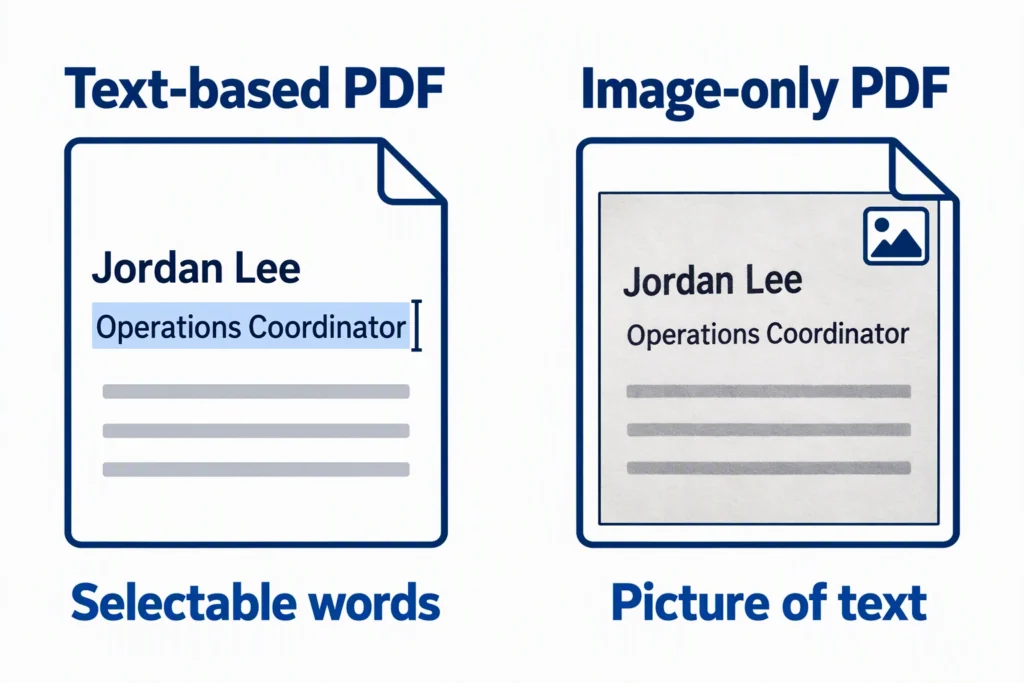
Lever suggests trying to highlight text as a basic check. Go further: copy your name, a job entry, and several bullets into a plain-text editor. Look for missing words, broken characters, or dates appearing beside the wrong role.
This is a useful diagnostic, not a simulation of the employer’s ATS. Even selectable text can be extracted in an unhelpful order. Greenhouse identifies columns, complex tables, and contact details in headers, footers, or text boxes as possible parsing problems. Keeping essential information in a straightforward reading order reduces those risks.
Read the limit for the resume field
File limits vary, and an attachment allowance may differ from a parsing limit. Greenhouse’s documentation allows candidate uploads up to 100 MB, but its parsing guide says resumes larger than 2.5 MB cannot be parsed. Workable lists a 5 MB limit for its resume field.
These are examples from those providers’ published guidance, not limits for every employer. Check the actual application. If your file is too large, remove unnecessary images or reduce their resolution in the source document, then export again. Shrinking the font won’t meaningfully solve an oversized-image problem.
Check the version you’re about to send
The working draft can look perfect while the exported attachment has an extra page, a broken link, or a review comment. Give the actual submission file its own check.
Export directly from the current draft
Use your editor’s Save As, Export, or Download command and choose the required format. Word can save a PDF without extra software. In Google Docs, the File > Download menu offers both PDF and Microsoft Word formats.
Changing resume.docx to resume.pdf in the filename doesn’t convert the document. Neither does putting a screenshot into a file with the preferred extension. If your only copy is a scan, recover the editable original or use text recognition and carefully check the result.
When sending Word, resolve tracked changes and delete review comments from the submission copy. In Word for Windows, File > Info > Check for Issues > Inspect Document can help find remaining review material and hidden data. Microsoft recommends inspecting a copy because some removals can’t be undone.
Review the attachment as a reader
Close the editor and open the saved file. Check every page, especially the bottom of each one. Look for clipped text, unexpected blank pages, misplaced bullets, and headings separated from their entries. Test your email, LinkedIn, and portfolio links if you’ve included them.
For a PDF exported from Word, make sure the output shows the finished document rather than tracked-change markup. For DOCX, opening it in another available word processor can reveal layout shifts. Review any fixes in the final export again.
Use a file that opens without a password unless the employer has explicitly arranged another process. The recipient shouldn’t need a separate access step to read the attachment.
Compare any filled-in fields with your resume
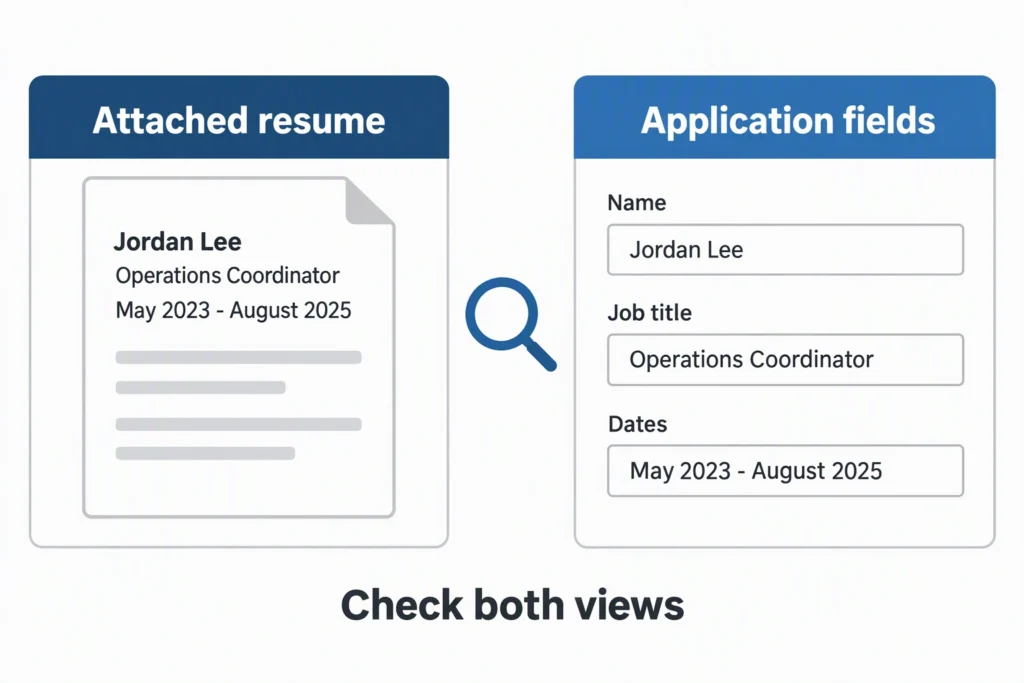
After attaching the file, check the application preview and any information the site filled in. A good-looking preview doesn’t establish that the job-history fields are correct.
Suppose your resume says Operations Coordinator, May 2023–August 2025, but the form attaches those dates to your previous job. Correct the fields if the application allows it. If the same problem affects several entries, simplify the source layout or try the other accepted format, then review the new result.
When an upload fails entirely, read the error before changing formats. It may identify a size limit, an unsupported extension, or a damaged file. Follow that clue and re-export if needed. A parsing problem also doesn’t automatically mean rejection: Greenhouse documents cases where the attachment remains available but profile details need manual entry.
Make the choice and finish the application
Once the requested file opens cleanly and the visible application details are accurate, finish the remaining questions and submit. Keep the exact attachment with your application record. You’ve made the format decision on evidence you can check; there’s no need to keep switching files because another article declares a universal winner.
FAQ
These final details come up when the file is ready but the submission process adds a wrinkle.
Is DOC the same as DOCX?
They are different Word file formats. DOC is the older format; DOCX is the usual choice for a current editable Word document. If an employer names one exact extension, check that your saved file matches it. Don’t assume a field accepting DOC necessarily accepts DOCX, or vice versa.
Can I send a Google Docs link instead of an attachment?
Use a link when the employer asks for one or agrees to accept it. If the application requires an uploaded resume, download the document in an accepted format. For a requested link, check that the intended recipient can open it without sending an access request.
Do I need to resend an application because I used the other format?
If the employer accepted both, your file opens correctly, and you didn’t miss a specific instruction, there is no format-based reason to send a duplicate application. If you discover an actual problem, use the portal’s replacement option or contact recruiting with a concise correction. Don’t assume changing a profile document replaces an attachment already submitted.