

Compare the Best Resume Templates
Pisces uses a centered name with a gold accent. Sagittarius is spare and formal. Virgo puts a blue name at the upper left, while Pacific places the name on the right. View each preview below and choose the layout that presents your experience most clearly.
100% ATS-friendly: Each of these MyResumeStar templates is designed for use with applicant tracking systems.
Compare Four Resume Layouts
The experience, skills, and education are the same in every sample. Select a template to see what its design brings forward.
Select a design
Because the sample content stays the same, you can judge the layout itself.
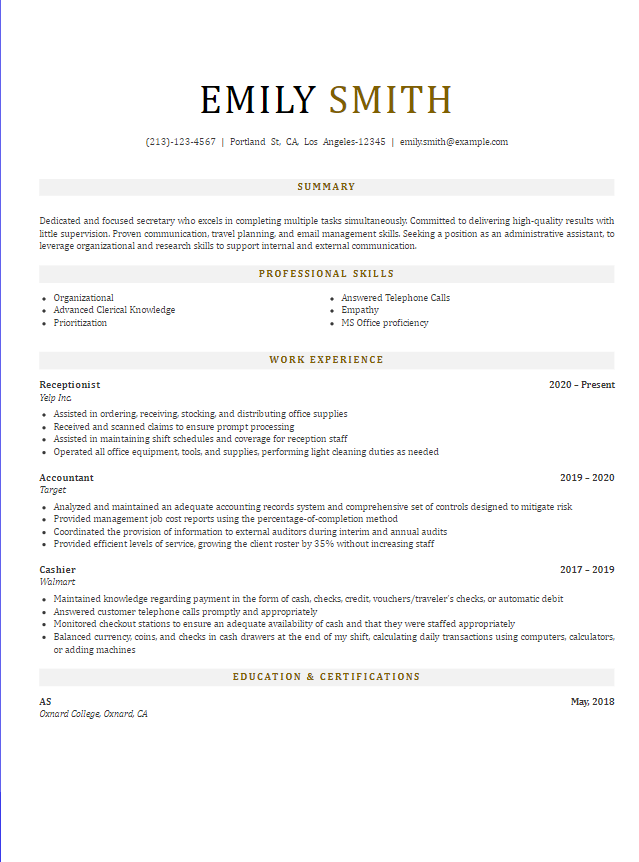
Pisces
The gold detail draws the eye to the centered name. Light gray bands give the summary, skills, and work history strong visual breaks.
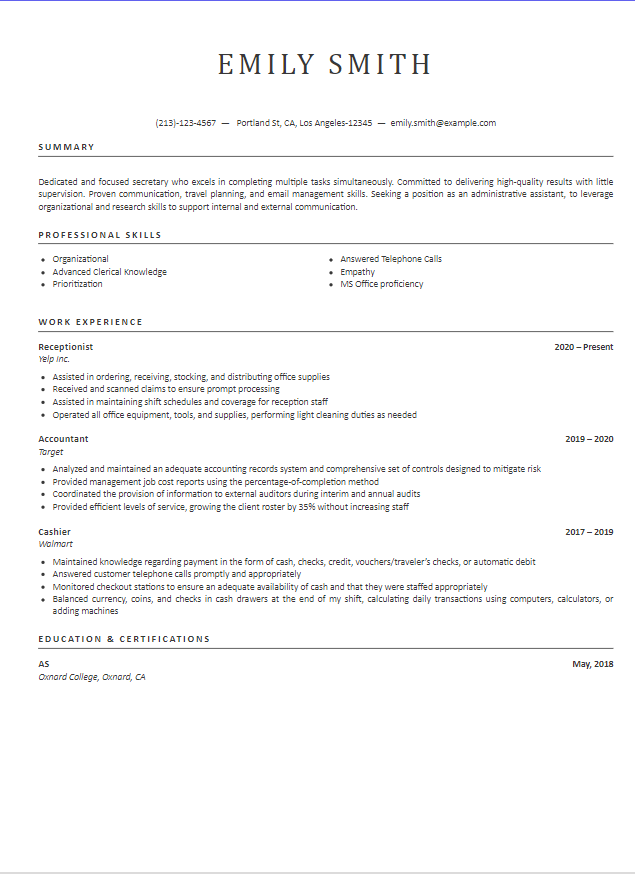
Sagittarius
A centered serif name gives the page a formal opening. Thin black rules divide the sections while leaving the rest of the resume largely uncolored.
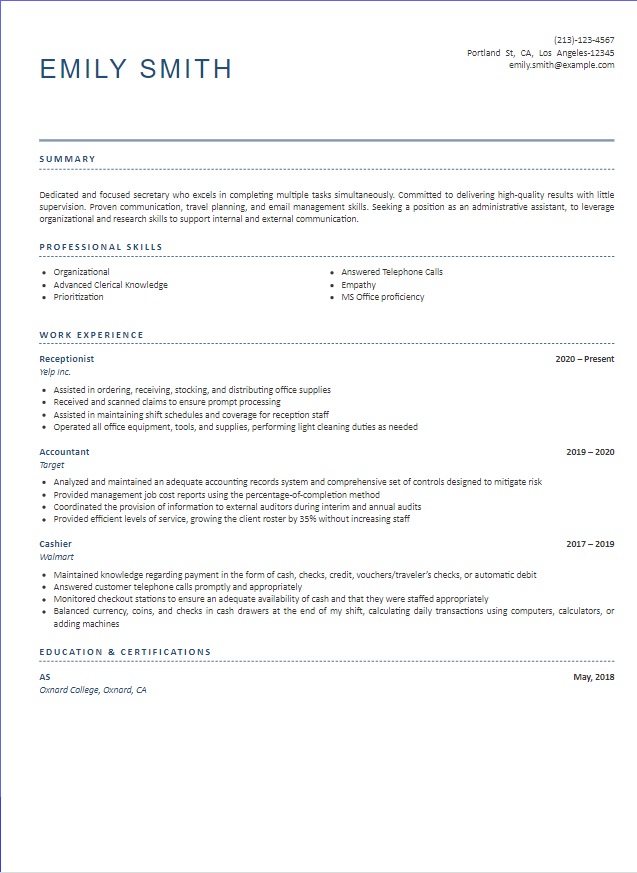
Virgo
The name moves to the upper left in blue, opposite the contact details. Fine solid and dotted rules organize the sections below.
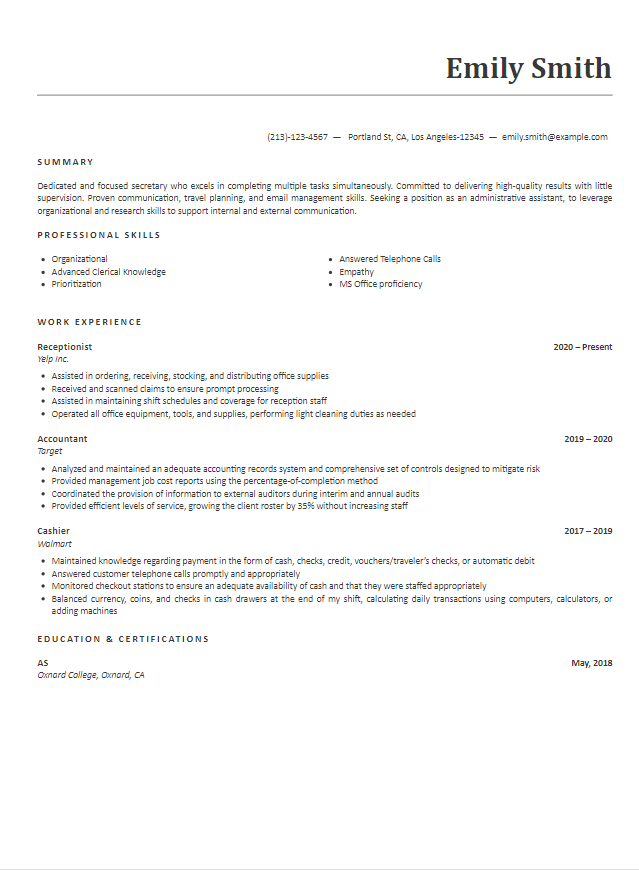
Pacific
The name sits at the upper right, above a single long rule. Simple section labels and white space give the work history the most visual room.
How to Choose the Best Resume Template
The gallery keeps the sample content the same so you can compare the designs. Before settling on one, check it again with your own information in the builder.
- Find the important details quickly
Look for your name, contact information, recent job title, and dates. The layout should make them easy to locate without searching around the page.
- Check how your experience fits
A short work history may leave more open space; a detailed one may fill the page. Use your real content to judge the spacing instead of relying only on the sample resume.
- Review the finished page
After adding your details, check that headings, dates, and lines of text remain readable. Make the final choice from your completed resume preview.
Choosing between chronological, functional, and combination structures is a separate decision. Our guide to resume formats explains how those formats organize your information.
Use a Template in the Builder
The gallery images show sample resumes. Click a template’s button or image to open the builder, then select the design you want on its template screen.
You can start a new resume or import an existing PDF or DOCX file. Once your own details are in place, review the complete page before downloading it.
Open the resume builder →More Template Options
Want another look?
These four keep experience in one main reading column. For more color and layout variety, compare our modern resume templates. For another collection of polished designs, browse the professional resume templates.
Want to edit a file?
If you prefer working directly in Microsoft Word, explore the Word resume templates. If you work in your browser, see the Google Docs resume templates.
Best Resume Template FAQs
Is a simple resume template better than a styled one?
Neither is automatically better. These previews put the same information into different designs. Choose the one that makes your name, recent experience, and key details easiest to find after you add your own content.
Can I use these templates if I have little work experience?
Yes. The images show a sample with several jobs, but your resume can include relevant education, projects, internships, and skills. Check the finished preview to see how your information fits.
Are Pisces, Sagittarius, Virgo, and Pacific ATS-friendly?
Yes. All four MyResumeStar templates are designed to be 100% ATS-friendly. Your final resume still needs accurate details and relevant content. For more on preparing the finished file, read our ATS resume guide.
Does clicking a template preview download it?
No. Clicking a preview or its builder button opens the resume builder, where you can select a design and create your resume. The separate “View larger image” link opens the sample image for closer inspection.